-

-
Location:
1922 Mentor Ave, Painesville Twp.
Location:
1922 Mentor Ave, Painesville Twp.
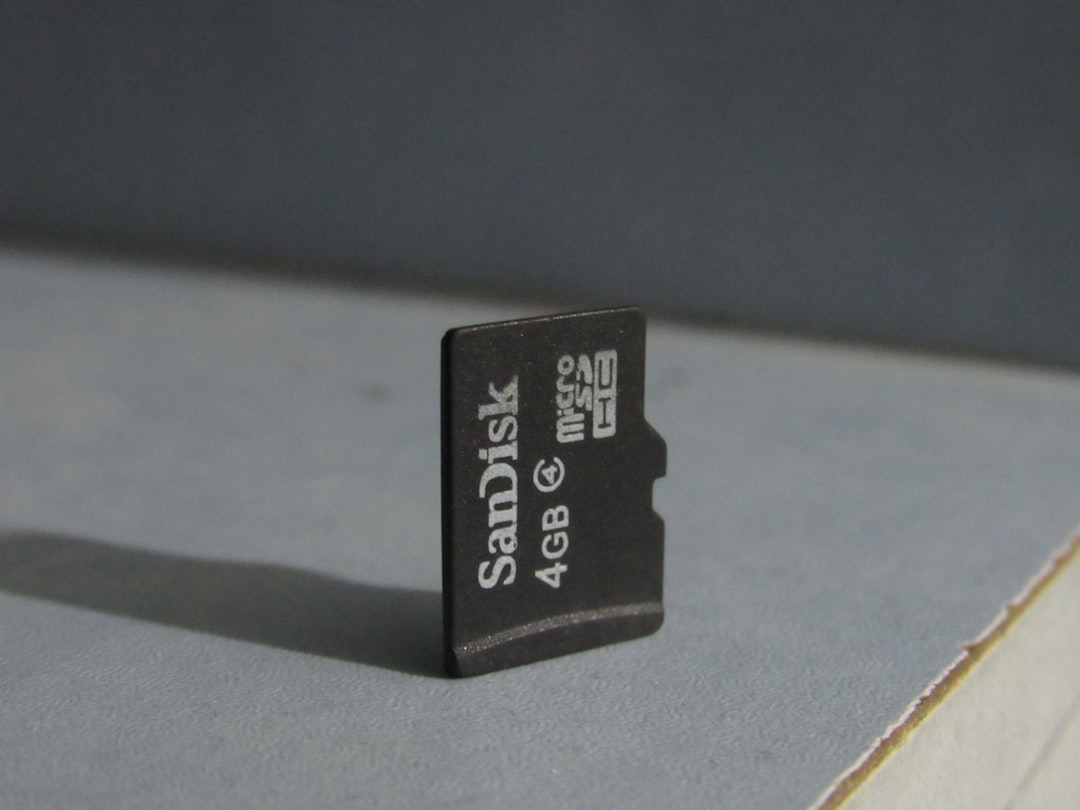
If you’ve accidentally formatted an SD card, here’s what to do right now:
That sinking feeling when you realize you’ve just wiped your SD card is something a lot of people know. One wrong button press on a camera. One accidental tap in your phone’s storage settings. And suddenly, hundreds of photos or videos seem to be gone.
Here’s the good news: they’re probably not gone for good.
When you format an SD card — especially a quick format — the device doesn’t actually erase your files. It just removes the index that points to them, like tearing the table of contents out of a book. The chapters are still there. You just need the right tool to find them again.
The key is acting fast. Every new file saved to that card risks overwriting the data you’re trying to get back.
I’m Jay Baruffa, President of Little Mountain Phone & Computer Repair in Painesville, Ohio, and I’ve helped countless customers recover data from an accidentally formatted SD card as part of our data recovery services. Whether it’s a photographer’s memory card or a phone full of family videos, the recovery process is more straightforward than most people expect — and I’ll walk you through exactly what to do.
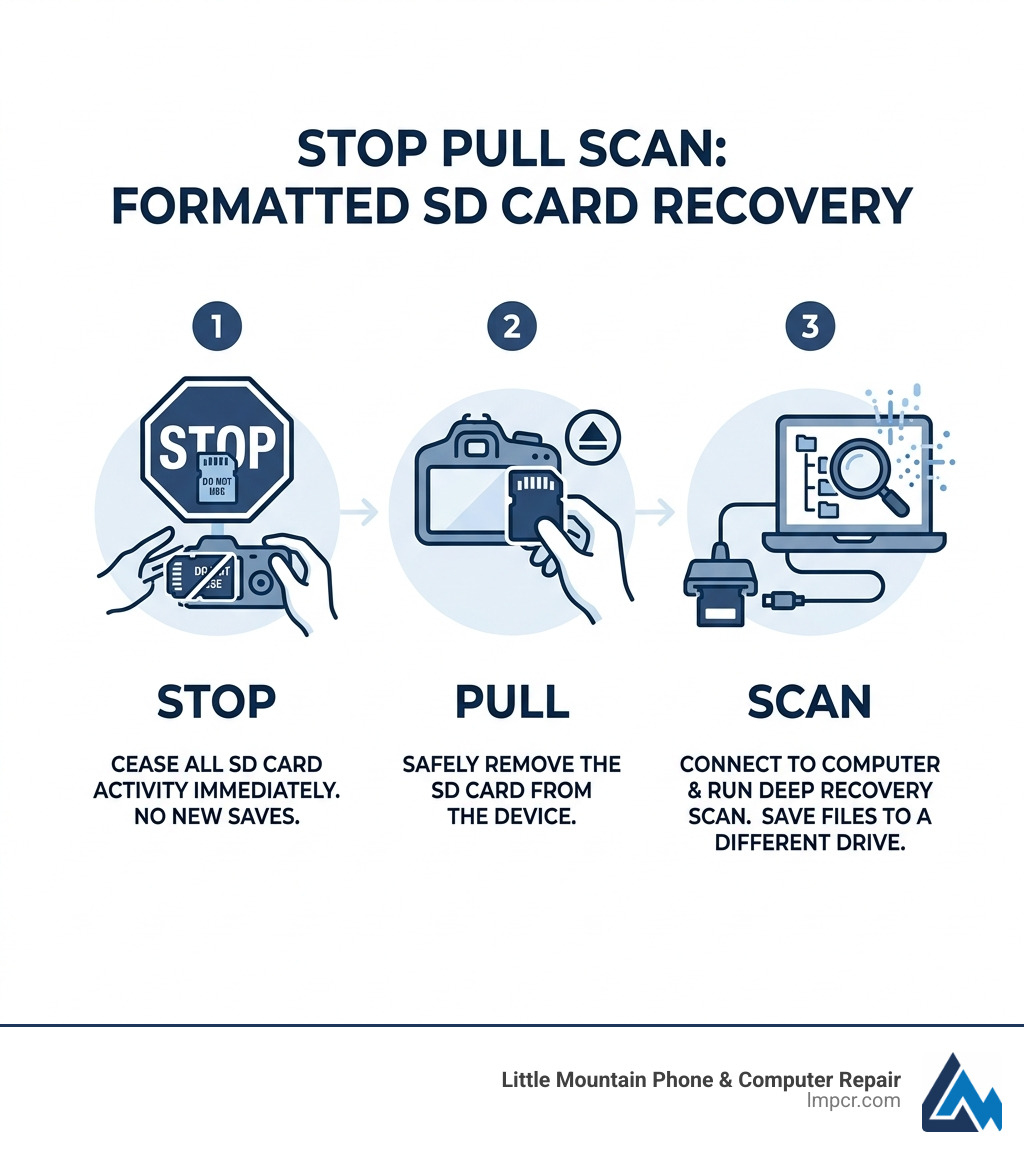
Accidentally formatted sd card terminology:
When you click that “Format” button, your device performs a digital restructuring. To understand why your files are still there, imagine your SD card is like a giant library. The files are the books on the shelves, and the “File System” is the card catalog at the front desk.
When you have an accidentally formatted sd card, the device usually just clears the card catalog. The books (your photos and videos) are still sitting on the shelves in their original “data blocks.” However, the library now thinks the shelves are empty and is ready to put new books in those spots. This is why we tell you to stop using the card immediately—if you “put new books on the shelves,” you physically push the old ones out, a process known as overwriting.
The success of your recovery depends heavily on the type of format performed. Most cameras and smartphones use a “Quick Format” by default. This only replaces the file system metadata (the index). However, a “Full Format” or “Secure Erase” is a different story.
| Format Type | What Happens | Recovery Success Rate |
|---|---|---|
| Quick Format | Clears the file index; data remains on blocks. | Very High (90%+) |
| Full Format | Scans for bad sectors; often overwrites with zeros. | Low to Impossible |
| SD_ERASE | Deliberately wipes data blocks for security. | Near Zero |
For a deeper dive into how this works, you can check out this guide on I Accidentally Formatted My SD Card – How to Recover Files Fast.
In Windows and many digital cameras, you are often given a choice. A Quick Format is like a quick dusting; it prepares the card for new data in seconds by rebuilding the file table. Because it doesn’t touch the actual sectors where your data lives, recovery software can scan those sectors and “see” the files based on their unique digital signatures.
A Full Format, on the other hand, is a deep clean. It checks the card for physical errors and, in modern operating systems, often performs “zero-filling.” This means it writes a ‘0’ over every single bit of data on the card. Once a sector is zeroed out, the original data is physically gone. There is no “undo” button for a full sector overwrite.
Why does this happen so often? In our experience serving the Lake County and Geauga County areas, it usually boils down to a few scenarios:
If you are dealing with a card that seems broken, read A Detailed Guide: How to Format Corrupted SD Card to understand the repair side of things—but always try recovery first!
The moments immediately following the realization that you’ve wiped your card are the most critical. Your actions here determine whether you’ll get your memories back or lose them forever.
We cannot stress this enough: Stop. Using. The. Card. If you have an accidentally formatted sd card in your camera, do not take “just one more picture” to see if it’s working. If it’s in your phone, unmount it or turn the phone off.
Every time a device writes to the card, it picks “empty” spots to store the new data. Since the format marked the entire card as “empty,” the device will start overwriting your old photos immediately. If your SD card has a physical “Write-Protect” switch on the side, slide it to the “Lock” position. This prevents any device from writing new data to it while you prepare for recovery.
For a quick refresher on the general process, see our guide on How to Do Data Recovery in 5 Easy Steps.
Before you spend hours scanning the card, check if the data exists elsewhere.
%temp% folder.Cmd + Shift + Period to see if your files reappear.For more on how to keep your data safe before disaster strikes, check out Data Recovery: How to Protect Your Valuable Files.
If the files aren’t in the cloud, it’s time to bring out the big guns: data recovery software. This software doesn’t look at the “card catalog”; it looks at the “books” themselves.
To do this right, you’ll need a computer and a reliable USB card reader. Avoid connecting your camera via a USB cable, as many cameras use a “Media Transfer Protocol” (MTP) that prevents recovery software from seeing the raw sectors of the card.
For more detailed software steps, see Lost Files? Easy Ways to Unformat Your SD Card and Restore Data – Rene.E Laboratory or our own Desktop Data Recovery: The Ultimate Guide to Finding Lost Files.
If you’re on the go and don’t have a laptop, you can try mobile apps like DiskDigger or Undeleter. However, there’s a catch: these apps work best if your phone is “rooted.” Without root access, the app can only scan your phone’s thumbnail cache, meaning you’ll get low-resolution versions of your photos rather than the original files.
Whenever possible, we recommend pulling the card and using a PC. It’s much more powerful and doesn’t risk the phone’s OS overwriting data while the app is running. You can learn more about mobile-specific tools in our article on Android Data Recovery: The World’s Best Software Solutions.
Sometimes, software isn’t enough. If your computer doesn’t even recognize that a card is plugged in, or if the “format” was caused by a physical hardware failure, you might need more advanced help.
If your card is showing up but says it’s “unreadable,” you might be able to fix the logical links using Windows’ built-in tools.
attrib -h -r -s /s /d X:\*.* (Replace ‘X’ with your SD card’s drive letter).chkdsk X: /f. Note: Use this with caution. While it can fix errors, it can also occasionally make recovery harder by moving data blocks around.If you’ve tried the software and it comes up empty, or if your card is physically cracked or “dead,” it’s time to call in the professionals. At Little Mountain Phone & Computer Repair, we see the “tough cases” from all over Lake County—from Mentor to Chardon.
Professional services use specialized hardware that can bypass the SD card’s controller and read the NAND flash chips directly. This is a forensic-level process used when the card has a physical short or the controller chip has failed. While software recovery is something you can often do at home, hardware-level recovery requires a cleanroom environment and expert tools.
If you’re in the Northeast Ohio area and are panicking over a lost wedding shoot or baby photos, we can help. Check out our Service Post: Data Backup & Recovery for more details on how we handle these high-stakes situations.
Generally, no. A “Full Format” in modern versions of Windows (since Vista) writes zeros to the entire disk. Once the data is overwritten with zeros, it is physically erased from the flash memory. However, some older cameras or devices might label a “Quick Format” as a “Full Format,” so it’s always worth running a scan just in case.
This depends on two things: the capacity of the card and the speed of your connection. A deep scan on a 128GB card using a USB 2.0 reader might take 2 to 4 hours. If you’re using a high-speed USB 3.0 reader, that time could drop to 30 minutes.
This is usually a sign of a “corrupted” file system or an aging card. The camera can’t read the “table of contents,” so it assumes the card is blank or broken. Before you hit “OK,” take the card to a computer and try to back up the files using the methods we’ve discussed.
An accidentally formatted sd card feels like a disaster, but in the vast majority of cases, those files are just waiting to be “un-hidden.” By stopping use immediately and using the right scanning tools, you can usually get your data back in an afternoon.
At Little Mountain Phone & Computer Repair, we’ve spent over 20 years helping our neighbors in Painesville, Willoughby, and throughout Lake County save their digital lives. Whether it’s a quick 30-minute phone repair or a complex data recovery job, we pride ourselves on being the local experts you can trust.
To prevent this from happening again:
If you’re stuck and the software isn’t working, don’t lose hope. Get expert help with your Data Backup & Recovery today and let us see what we can find for you.

Need Help?
© Big Hill Technologies, LLC. All Rights Reserved


