-

-
Location:
1922 Mentor Ave, Painesville Twp.
Location:
1922 Mentor Ave, Painesville Twp.

Micro SD card recovery is possible in most cases — whether you accidentally deleted files, the card got corrupted, or it stopped being recognized by your device.
Here’s a quick overview of your options:
| Situation | Best First Step |
|---|---|
| Accidentally deleted files | Stop using the card, run recovery software |
| Card shows as RAW or unreadable | Use disk imaging (ddrescue) then file carving |
| Card not recognized at all | Test a different card reader first |
| Physically cracked or snapped | Contact a professional data recovery service |
| Formatted by mistake | Run recovery software immediately, avoid writing new data |
These tiny cards hold some of your most important files — photos, videos, documents. Losing that data feels awful. The good news? As long as you stop using the card right away, your chances of getting those files back are much better than you might think.
The biggest mistake people make is continuing to use the card or saving new files onto it after data loss. That’s what permanently destroys data — not the original failure.
I’m Jay Baruffa, President of Little Mountain Phone & Computer Repair, and I’ve helped countless customers through the stressful process of micro sd card recovery — from simple deleted file situations to cards that wouldn’t show up on any device. In the sections below, I’ll walk you through exactly what to do, step by step.
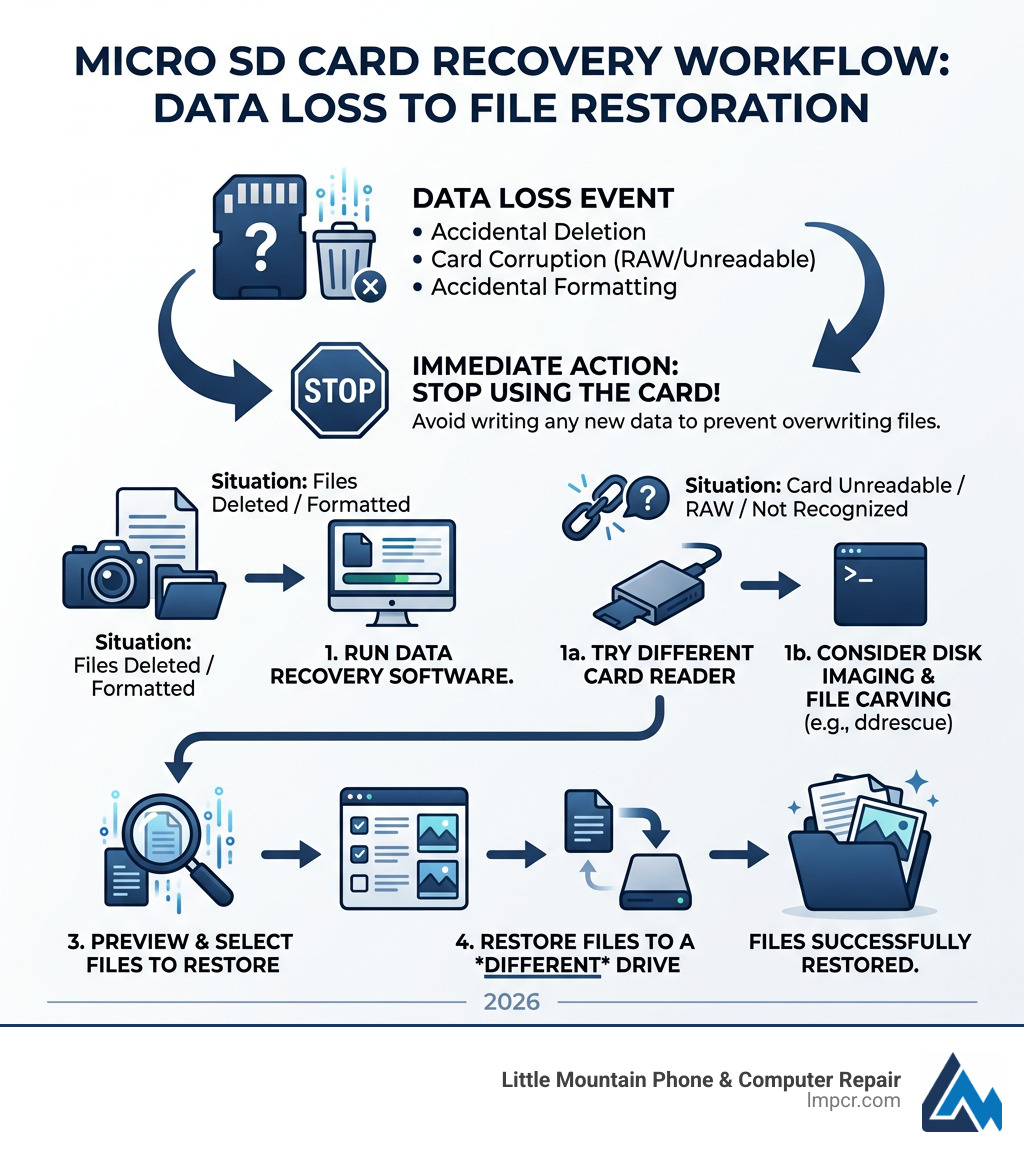
Micro SD cards are the “tiny storage superstars” of our modern world, but their miniature size is also their greatest weakness. Whether they are tucked inside a smartphone in Mentor or a drone flying over Lake County, these cards are susceptible to a variety of failures.
If you realize your files are missing, stop using the card immediately. Every second the card remains powered on in a camera or phone increases the risk of the device “overwriting” the deleted data with background logs or new files.
For more tips on keeping your digital life safe, check out our guide on Data Recovery: How to Protect Your Valuable Files.
If your card is still recognized by your computer (even if it says it’s empty or RAW), you can often perform micro sd card recovery yourself using specialized software.
| Software | Best For | Price | Pros |
|---|---|---|---|
| PhotoRec | Photos/Videos | Free (Open Source) | Powerful “carving” algorithms; works on many file systems. |
| TestDisk | Partition Repair | Free (Open Source) | Fixes partition tables and boot sectors. |
| Recuva | Simple Deletions | Free / Paid | Very user-friendly for Windows users. |
| DiskGenius | Corrupted Drives | Trial / Paid | Excellent at handling RAW partitions and bad sectors. |
| EaseUS | General Recovery | Trial / Paid | High success rate; repairs fragmented videos. |
When you use these tools, always save the recovered files to your computer’s hard drive—never back onto the Micro SD card you are recovering from. For a deeper look at finding lost files on your main computer, see our Ultimate Guide to Finding Lost Files.
When you delete a file, the card doesn’t actually erase the binary code. It just deletes the “entry” in the file system’s index and marks that space as “available.”
Tools like PhotoRec from cgsecurity.org use a method called file carving. They ignore the damaged file system entirely and scan the raw data for “headers”—unique signatures that identify a file as a JPEG, MP4, or PDF. Using MagicRescue or Foremost are also excellent options for Linux users looking to extract files based on these headers.
If your card is “partly unreadable” due to bad sectors, standard Windows copy tools will often hang or crash. In these cases, we recommend using ddrescue.
Unlike standard tools, ddrescue is designed to skip over bad sectors and come back to them later, trying to grab every possible bit of data. It creates a “disk image” (a bit-for-bit copy) of your card. Once you have this image, you can run recovery software on the image file rather than the fragile physical card. You can find detailed instructions in the ddrescue manual. For a pre-loaded environment with these tools, try SysRescueCD.
Sometimes, software isn’t enough. If your Micro SD card is physically cracked, snapped, or simply won’t show up in Windows “Disk Management” no matter what you do, you’ve likely moved from a “logical” failure to a “physical” one.
Modern Micro SD cards use a “monolithic” design. Unlike older USB drives where you could see the different chips, everything in a Micro SD card—the controller and the NAND flash memory—is baked into a single piece of silicon. This makes recovery incredibly difficult because there are no easy points to connect to.
When the controller chip (the “brain” of the card) fails, the data is still sitting on the NAND flash chips, but it’s trapped. Professionals use high-end tools like VNR tools or Flash Extractor to bypass the failed controller and talk directly to the memory.
At a professional lab, the process often involves chip-off recovery. This is the “brain surgery” of the data world.
It depends on where the crack is. If the crack only affected the plastic casing or the area where the pins are, recovery is highly likely. However, if the crack goes through the NAND flash die (the actual silicon where data is stored), the data is physically destroyed. Silicon is like glass—once it’s shattered, the microscopic memory cells are gone forever. A professional evaluation is the only way to know for sure.
Professional recovery is an intensive, manual process. While simple software-based recoveries might be affordable, advanced chip-off services often start around $300 per flash chip. Most Micro SD cards have one chip. You should also factor in diagnostic fees or labor costs if the recovery is unsuccessful. At Little Mountain Phone & Computer Repair, we always aim for transparency in our pricing for our neighbors in Painesville and surrounding Lake County areas.
Surprisingly often, yes! Cheap, off-brand card readers can malfunction and “scramble” the data on a card or fail to provide enough power for the card to be recognized.
Losing data is a nightmare, but micro sd card recovery doesn’t have to be. Whether you’ve accidentally deleted a folder or your card has been crushed, there is almost always a path forward. From DIY software like PhotoRec to advanced professional lab services, your files are often just waiting to be found.
At Little Mountain Phone & Computer Repair, we bring over 20 years of experience to every job. We understand that your data isn’t just “files”—it’s your memories and your hard work. Whether you’re in Willoughby, Chardon, or Mentor, we offer comprehensive solutions with a focus on speed and reliability, boasting a 30-minute average repair time for many common device issues.
If you’re struggling with a stubborn memory card and need expert help, don’t lose your mind—give us a call or stop by. We’re here to help you get your digital life back on track.

Need Help?
© Big Hill Technologies, LLC. All Rights Reserved


