-

-
Location:
1922 Mentor Ave, Painesville Twp.
Location:
1922 Mentor Ave, Painesville Twp.
Quick answer: If your Amazon Fire charging port isn’t working, here’s what to check first:
Your Amazon Fire was working fine — until it wasn’t. You plug in the charger and nothing happens. Or maybe the cable only works if you hold it at a weird angle. Or you’re getting a “Moisture detected” error even though your tablet has never been near water.
You’re not alone. This is one of the most common complaints among Fire tablet owners, and it’s been frustrating users since 2012. An iFixit community thread on Kindle Fire charging port failures alone has racked up nearly 450,000 views — a clear sign this problem is widespread.
The good news? Most charging port issues are fixable. Some you can solve in minutes. Others need a professional repair. This guide walks you through both.
I’m Jay Baruffa, President of Little Mountain Phone & Computer Repair in Painesville, Ohio — our shop has handled countless Amazon Fire charging port repairs, from simple cable swaps to full port replacements at the component level. I’ll share exactly what we’ve learned so you can make the right call for your device.
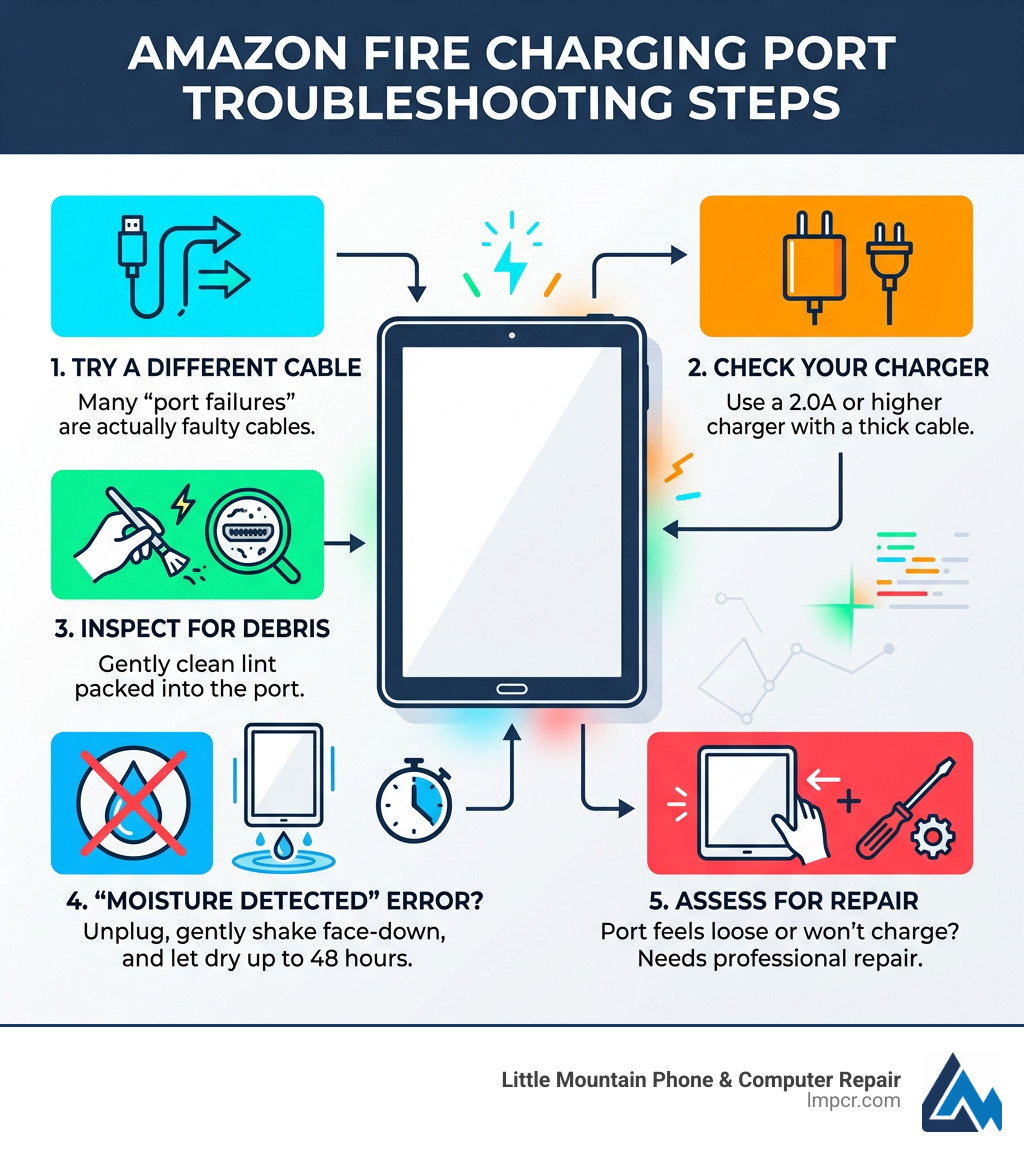
Before we reach for the screwdriver, we need to make sure the Amazon Fire charging port is actually the villain. Sometimes the problem is just a “tired” cable or a wall adapter that has given up the ghost.
If you find yourself wiggling the cable or propping the tablet up at a 45-degree angle just to get that charging bolt to appear, you’re likely dealing with a physical hardware failure. This “intermittent charging” is a classic sign that the internal pins or the solder joints holding the port to the motherboard have started to crack.
Another common headache is the “Moisture detected” error. While intended as a safety feature, many users report this message appearing on bone-dry tablets. This can be caused by physical debris (like pocket lint) conducting a tiny amount of electricity between pins, or a software glitch that refuses to clear.
How do you know for sure? Look for these red flags:
On newer Fire tablets with USB-C ports, the liquid detection sensor is incredibly sensitive. According to official Amazon support for charging issues, this error stops the device from charging to prevent a short circuit.
However, we often see this triggered by third-party cables that don’t meet Amazon’s specifications. If you’re stuck, try to resolve liquid detection issues by unplugging the cable and letting the device sit for 48 hours. If the error persists on a dry device, it usually indicates a hardware fault within the port itself.
| Symptom | Likely Cause: Bad Cable | Likely Cause: Broken Port |
|---|---|---|
| Charges slowly | Yes (thin wires) | No |
| Cable falls out easily | No | Yes (worn clips/housing) |
| Works if you bend the wire | Yes | No |
| Works if you wiggle the port | No | Yes |
| “Moisture detected” | Sometimes | Frequently |
You might wonder why your phone lasts for years while your tablet’s port fails in months. There are a few engineering reasons for this.
Many older Amazon Fire models use a Micro-USB port. Unlike the sturdier USB-C, Micro-USB is directional and prone to being forced in upside down. Furthermore, the Amazon Fire charging port in many models is a “surface mount” design. This means it is held onto the motherboard by tiny pads of solder and only a couple of small metal “legs.”
When a child (or a tired adult) trips over a charging cord or drops the tablet while it’s plugged in, that physical stress goes straight to those solder joints. Over time, microscopic cracks form. Eventually, the port detaches entirely.
Another factor is the sheer amount of power these tablets pull. A standard Fire tablet pulls about 700mA to 1.0A during a charge. If you use a very thin, cheap cable, the resistance creates heat. Heat causes metal to expand and contract, which accelerates the failure of those delicate solder joints.
Amazon made a significant change in 2019, transitioning the Fire HD 10 (and later the HD 8 and Fire 7) to USB-C. This was a massive upgrade in durability. USB-C ports are reversible and generally have more anchoring points on the motherboard. If you have a pre-2019 model, you’re dealing with the more fragile Micro-USB setup, which requires much gentler handling. If you’re struggling with a broken older model, you can find more info about tablet repair services to see if a professional fix is worth it for your specific generation.

If you’re tech-savvy and have a steady hand, you might be tempted to fix the Amazon Fire charging port yourself. Be warned: this isn’t like changing a battery. On most Fire models, the port is soldered directly to the main motherboard.
To attempt this, you’ll need more than just a screwdriver. A basic kit includes:
For a detailed look, you can follow this step-by-step Fire HD 8 Plus port replacement guide. The general process involves:
We see a lot of “DIY disasters” at our shop. The pins on an Amazon Fire charging port are less than a millimeter apart. If you accidentally bridge two pins with a blob of solder, you can cause a pin short.
Repair experts have observed that excessive wiggling or poor soldering can short the +5V pin to the ground pin, which can permanently destroy the charging circuitry on the motherboard. Once that happens, the tablet is often a “brick” that cannot be saved. If you’re also looking for more info about smartphone repair, the risks are very similar — these components are getting smaller and harder to fix every year.
While we love a good DIY project, charging port replacement is one of the few repairs where we generally recommend professional help for beginners. At Little Mountain Phone & Computer Repair, we’ve seen over 500 Kindles with these exact issues.
Why choose a pro?
Whether you are in Painesville, Mentor, or Willoughby, our team provides comprehensive electronic services to get your digital life back on track quickly.
No. In fact, in our experience, it’s rarely water. Most of the time, it’s a “false positive” caused by:
Technically, any USB charger will “work,” but for the health of your Amazon Fire charging port, we recommend a charger rated for 2.0A to 2.1A.
Avoid the super-thin, dollar-store cables. Use high-quality, thick cables (like those made by Anker or Amazon) that can handle the power draw without overheating. If you have a newer model like the HD 10 Plus, using a Qi-certified wireless dock is the best way to prevent port damage because you never have to plug anything in!
Not always! In some newer or larger models, the charging port is located on a small “daughterboard” or connected via a ribbon cable. In these cases, you can simply swap the entire small board without needing a soldering iron. However, for the majority of Fire 7 and HD 8 models, the port is soldered directly to the main board.
A broken Amazon Fire charging port doesn’t have to mean the end of your tablet. Whether it’s a simple cleaning, a software update, or a hardware replacement, there is almost always a solution.
To keep your port healthy in the future:
If you’ve tried the “shake and dry” method and swapped your cables but still have a dead tablet, don’t panic. You can get expert help with your Amazon Fire charging port at Little Mountain Phone & Computer Repair. We serve all of Lake County, from Eastlake to Madison, and we’d be happy to get your device powered up again.

Need Help?
© Big Hill Technologies, LLC. All Rights Reserved

