-
March 11, 2026
-
No Comments
Get Connected: Setting Up Your Home Network Like a Pro
Get Connected: Setting Up Your Home Network Like a Pro
Why a Solid Home Network Setup Matters More Than Ever
Home network setup is the foundation of modern connected living, and getting it right means faster speeds, better coverage, and fewer frustrating dropouts. Here’s what you need to know:
Quick Answer: Essential Steps for Home Network Setup
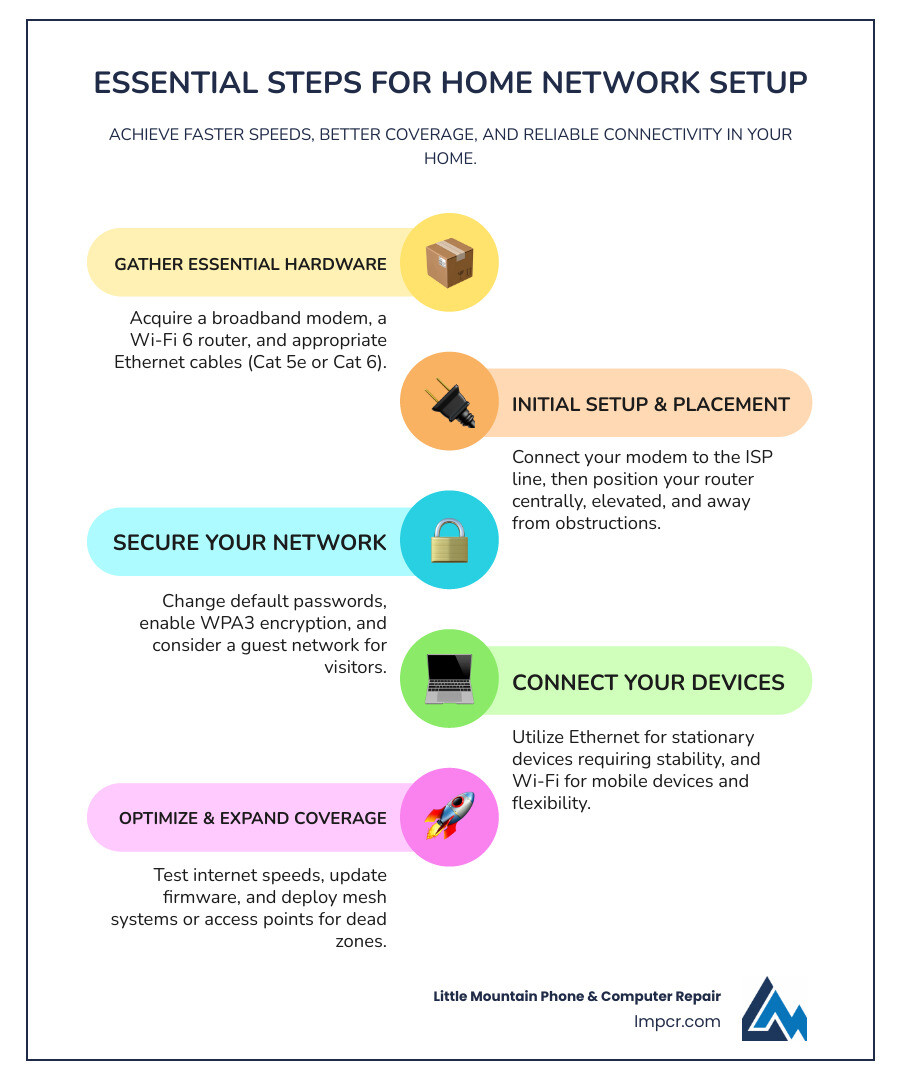
- Get the right equipment – Modem, router (Wi-Fi 6 recommended), and Ethernet cables (Cat 5e or Cat 6)
- Connect your modem to your ISP’s line (cable, fiber, or phone jack)
- Position your router centrally, liftd, away from walls and metal objects
- Configure security – Change default passwords, enable WPA3 encryption
- Connect devices – Use Ethernet for stationary devices, Wi-Fi for mobile ones
- Extend coverage if needed with mesh systems or additional access points
- Test and optimize – Check speeds, adjust channels, update firmware
Today’s homes have more connected devices than ever before. The average household now juggles computers, tablets, phones, smart TVs, security cameras, thermostats, and dozens of other gadgets—all competing for bandwidth on a single network.
Without a properly configured home network, you’ll face slow speeds, dead zones, dropped video calls, and endless frustration. But with the right setup, you can enjoy seamless streaming, reliable video conferencing, fast downloads, and whole-home coverage.
The good news? Setting up a robust home network isn’t as complicated as it sounds. Whether you’re starting from scratch or upgrading an outdated system, the core principles remain straightforward: choose quality hardware, position it correctly, secure it properly, and optimize for your specific needs.
I’m Jay Baruffa, President of Tech Dynamix and owner of Little Mountain Phone & Computer Repair in Painesville, Ohio, where I’ve spent years helping residential and business clients build reliable networks that support their growing tech needs. Through countless home network setup projects, I’ve learned what works, what doesn’t, and how to troubleshoot the most common connectivity issues quickly.
Essential Hardware for Your Home Network Setup
To build a solid home network setup, you need a few key pieces of hardware that act as the backbone of your digital life.
What are the essential hardware components needed for a home network setup?
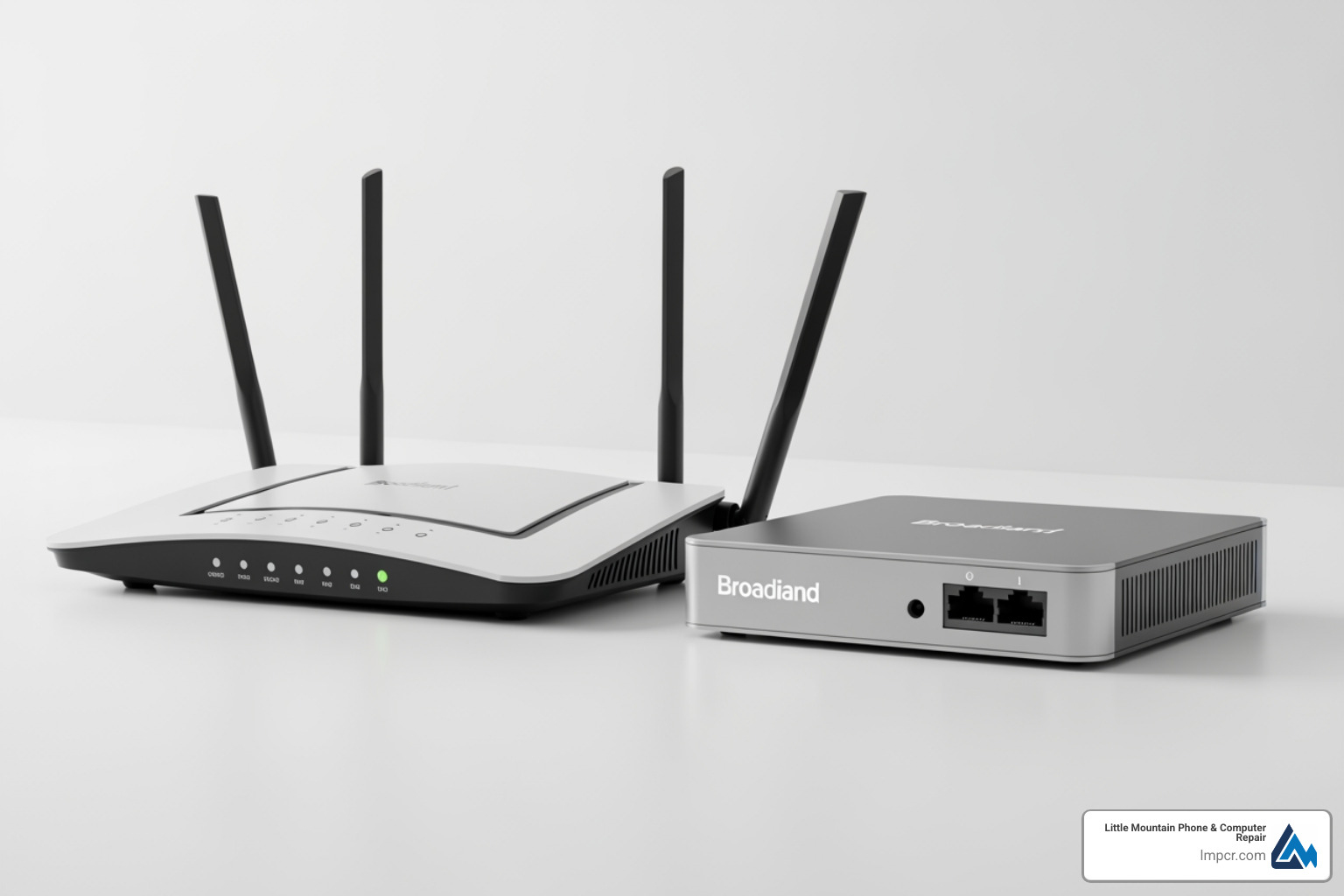
- Broadband Modem: Your gateway to the internet. It connects your home to your ISP (cable, fiber, or DSL) and translates their signal into data your router can use. While ISPs in areas like Concord Township or Madison often provide combo units, separate devices offer better control.
- Wireless Router: The brain of your network. It distributes the internet signal to your devices via Wi-Fi or Ethernet, assigns IP addresses, and provides firewall protection.
- Network Switches: If your router lacks enough Ethernet ports for your wired devices (PCs, consoles, smart TVs), a switch expands your capacity. Unmanaged switches are ideal for most homes.
- Ethernet Cables: Physical wires for data transfer. They offer superior speed and reliability compared to Wi-Fi.
Choosing the Right Router for Home Network Setup
Your router dictates your Wi-Fi speeds and coverage. Consider these factors:
- Wi-Fi Standard: Look for Wi-Fi 6 (802.11ax), which supports up to 9.6 Gbps and handles more devices simultaneously than Wi-Fi 5, reducing congestion in busy Lake County households.
- Tri-band Technology: High-performance routers like the Synology RT6600ax use a dedicated radio for backhaul traffic, ensuring smoother data flow.
- Management Tools: The Synology SRM interface is highly regarded for its robust security and management features.
For cabling, Cat 5e supports 1 Gbps, while Cat 6 supports up to 10 Gbps, making it better for 4K streaming and future-proofing.
| Feature |
Cat 5e Ethernet Cable |
Cat 6 Ethernet Cable |
| Max Speed |
1 Gbps |
10 Gbps |
| Bandwidth |
Up to 100 MHz |
Up to 250 MHz |
| Use Case |
Standard home networking |
High-speed, future-proofing |
Understanding IP Addresses and Subnets
- IP (Internet Protocol): A unique address for each device. Most home networks use Internet Protocol version 4 (IPv4), with private ranges like 192.168.x.x.
- Subnet Mask: Defines network boundaries (e.g., 255.255.255.0).
- Default Gateway: Your router’s IP address, the exit point for internet traffic.
- DHCP Server: Automatically assigns IP addresses to devices, though you can set static IPs for printers or NAS units to simplify management.
Step-by-Step Guide to Setting Up Your Modem and Router
- Connect Your Modem: Plug it into your ISP’s line (coax, fiber, or phone) and power it up.
- Bridge Mode: If using a separate router with an ISP combo unit, put the ISP device in “bridge mode” to avoid conflicts.
- Connect Router to Modem: Use a Cat 5e or Cat 6 cable to connect the router’s WAN port to the modem.
- Initial Configuration: Connect a computer to a LAN port via Ethernet and access the admin panel by typing the router’s IP (e.g., 192.168.1.1) into a browser. Use the default credentials found on the device sticker to log in.
Optimizing Your Home Network Setup for Speed
- Change Credentials: Immediately update default passwords for the admin panel and Wi-Fi. Use a LastPass vault to keep them secure.
- Update Firmware: Install the latest updates for security and performance.
- Test Your Speed: Use Fast.com to check download/upload speeds, latency, and jitter.
- Select Channels: Use a Wi-Fi analyzer to find the least congested channels. For 2.4 GHz, use 1, 6, or 11.
- 2.4GHz vs 5GHz: Use 2.4 GHz for range and smart home devices; use 5 GHz for high-speed tasks like gaming or streaming near the router.
- Quality of Service (QoS): Prioritize critical traffic like video calls over background downloads.
For more professional assistance, see More info about computer services.
Wired vs. Wireless: When to Use Each Connection
- Wired (Ethernet): Best for stationary devices like PCs, consoles, and smart TVs. It offers maximum stability and low latency. If running cables is hard, TP-Link Powerline adapters can use your home’s electrical wiring to extend connectivity.
- Wireless (Wi-Fi): Essential for mobile devices like tablets and phones. While Wi-Fi 6 is fast, it remains more susceptible to interference than a wired line.
Extending Range and Improving Coverage
To eliminate dead spots in larger homes in Willoughby or Eastlake, consider these strategies:
- Router Placement: Place the router centrally, liftd, and away from metal or thick walls.
- Access Points (APs): Adding APs connected via Ethernet is the most reliable way to expand coverage. PoE (Power over Ethernet) models simplify installation.
- Mesh Wi-Fi Systems: Systems like the Deco X20 Mesh System use multiple nodes to create a single, seamless network. This allows for “seamless roaming” as you move through your home.
- Alternative Adapters: Powerline or MoCA (coax) adapters can provide wired backbones without new construction.
The Benefits of Mesh WiFi Systems
Mesh systems are ideal for complex layouts in Leroy Township:
- Seamless Roaming: Your device stays on one network name, switching nodes automatically.
- Scalability: Easily add M4 Satellites to cover more area.
- Self-Healing: If one node fails, the system reroutes traffic through others.
- Dedicated Backhaul: Many systems use a separate wireless band for node-to-node communication, preserving speed for your devices.
Securing and Segmenting Your Network
- WPA3 Encryption: Enable the latest security standard for better protection against brute-force attacks.
- Firewall & UPnP: Keep the router firewall active and disable UPnP to prevent unauthorized port opening.
- Port Forwarding: Only use this for specific services (like gaming servers) and manage it carefully. Advanced users might use an OPNSense firewall for granular control.
- Automatic Updates: Ensure all network hardware stays updated with security patches.
Network Segmentation for Safety
Segmenting your network improves security by isolating threats:
- Guest Networks: Keeps visitors off your main network where sensitive data resides.
- IoT Isolation: Put smart cameras and plugs on a dedicated network. If an IoT device is compromised, the attacker cannot easily reach your PC.
- Work/Home Separation: Use VLANs to separate work traffic from personal streaming, ensuring better security and bandwidth prioritization for professional tasks.
When choosing a router for a home office, prioritize performance, advanced threat protection, and robust support for segmentation.
Troubleshooting Common Connectivity Issues
- Reboot: Power cycle your modem and router to clear temporary glitches.
- Check Cables: Ensure all Ethernet connections are tight.
- Interference: Change Wi-Fi channels if speeds are slow, especially on the 2.4 GHz band.
- IP Conflicts: Reboot devices or use
ipconfig /renew on Windows to resolve address clashes.
- Identify Devices: Use your router’s admin panel or macvendors.com to identify unknown devices. Tools like Nmap can help map your network.
- DNS Issues: If sites won’t load, try changing DNS to Google (8.8.8.8). For advanced users, Pi-hole ad blocking provides network-wide filtering and DNS management.
- Factory Reset: If all else fails, reset the router to defaults, but remember you’ll need to reconfigure all settings.
Frequently Asked Questions about Home Networking
What is the difference between a modem and a router?
A modem connects your home to the ISP’s network (bringing the internet in). A router creates your local network, distributing that connection to your devices and providing security.
How can I extend my WiFi to a second floor or basement?
A mesh Wi-Fi system is the best solution for seamless coverage. Alternatively, install wired access points or use powerline adapters to carry data through electrical wiring.
Why is my internet speed slower than what I pay for?
Common causes include Wi-Fi interference, outdated hardware that can’t handle high speeds, poor router placement, or too many devices saturating the bandwidth. Always test with a wired connection directly to the modem to see if the issue lies with the ISP or your internal network.
Conclusion
Setting up a robust home network setup is no longer a luxury; it’s a necessity for modern living. By understanding the essential hardware, following a step-by-step setup guide, optimizing for speed, extending your coverage, and rigorously securing your network, you can transform your digital experience from frustrating to seamless.
Whether you’re working from home in Willoughby Hills, streaming movies in Aquilla, or simply staying connected with family in Madison, a well-configured home network ensures you get the most out of your internet connection.
If you find yourself overwhelmed or simply want the peace of mind that comes with a professional setup, Little Mountain Phone & Computer Repair is here to help. With over 20 years of experience in the device repair industry, we offer expert computer, phone, and tablet repair services, known for our quick 30-minute average repair times and comprehensive solutions. We can also assist with advanced network configurations to meet your specific needs. Don’t hesitate to reach out for Expert computer repair services and more!