-

-
Location:
1922 Mentor Ave, Painesville Twp.
Location:
1922 Mentor Ave, Painesville Twp.
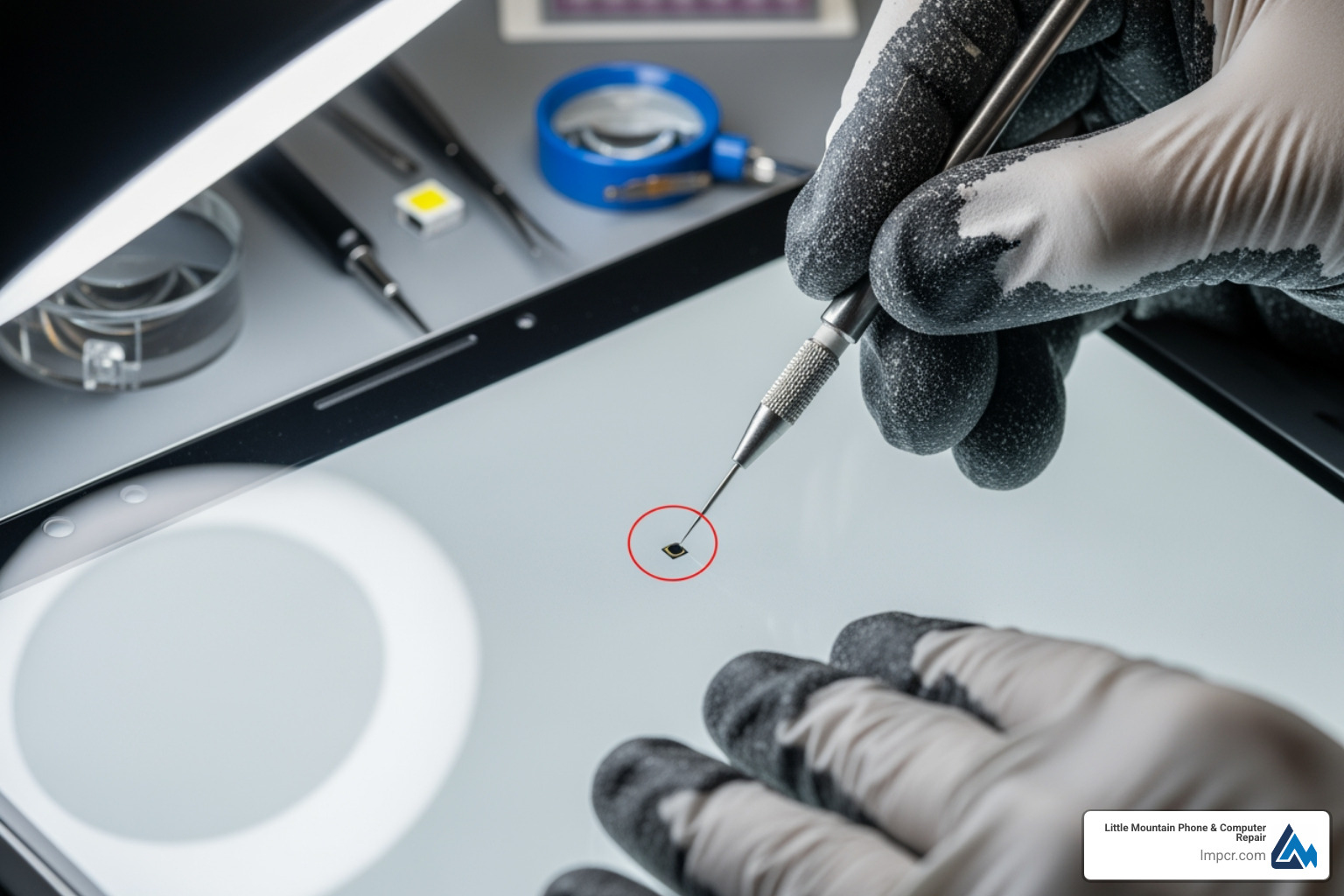
In our modern, digital-first world, our screens are the primary windows through which we interact with work, family, and entertainment. Whether it is the smartphone in your pocket, the laptop on your desk, or the tablet you use for reading, a single defect can be incredibly distracting. This is why dead pixel screen repair is such a vital topic for device owners. A tiny black or colored dot might seem insignificant to some, but for anyone who relies on visual precision (photo editing, spreadsheets, gaming, schoolwork, remote work, or even just reading), it can become a constant source of frustration.
Pixel defects can also create practical problems beyond annoyance. A bright stuck pixel can be mistaken for a notification indicator on a phone. A dead pixel in the center of a laptop screen can interfere with cursor tracking or reading small text. On a monitor used for design work, even a single defect can affect confidence in color accuracy. And if the device is new, understanding your options early can help you decide whether to attempt a quick fix, document the defect for a warranty claim, or pursue a replacement.
A pixel is the smallest visible unit on your display. Your screen is made of a grid of thousands to millions of these tiny picture elements. On most modern panels, each pixel is actually built from three sub-pixels: red, green, and blue (RGB). By varying how bright each sub-pixel is, the display produces the full range of colors you see.
In most LCD and OLED designs, tiny electronic components (often described as thin-film transistors, or TFTs) control whether a pixel or sub-pixel turns on and how bright it gets. When one part of that control chain misbehaves, you get a defect that can look like:
Both dead and stuck pixels stem from problems with the pixel’s transistor or its RGB sub-pixels. The good news is that stuck pixels are often fixable using simple software tools that rapidly cycle colors to force the sub-pixels to reset. Dead pixels are trickier and are often true hardware failures, but some can still be revived if the pixel is not fully failed.
Knowing whether you are dealing with a stuck pixel or a dead pixel determines your best next step:
Many stuck pixels can improve in under 10 minutes using free web-based tools, while others may take up to an hour of continuous color cycling. If the defect does not change at all across multiple backgrounds (white, black, red, green, blue), that is a clue you may be dealing with a true dead pixel or a physical panel issue.
I’m Jay Baruffa, President of Tech Dynamix and owner of Little Mountain Phone & Computer Repair in Painesville, Ohio. With over 20 years of experience in the industry, I’ve helped customers diagnose and resolve dead pixel screen repair issues on everything from smartphones and tablets to high-end computer monitors. Whether it’s a software fix you can try at home or a hardware replacement that requires professional service, the goal is the same: get you back to a clean, distraction-free screen as quickly as possible.
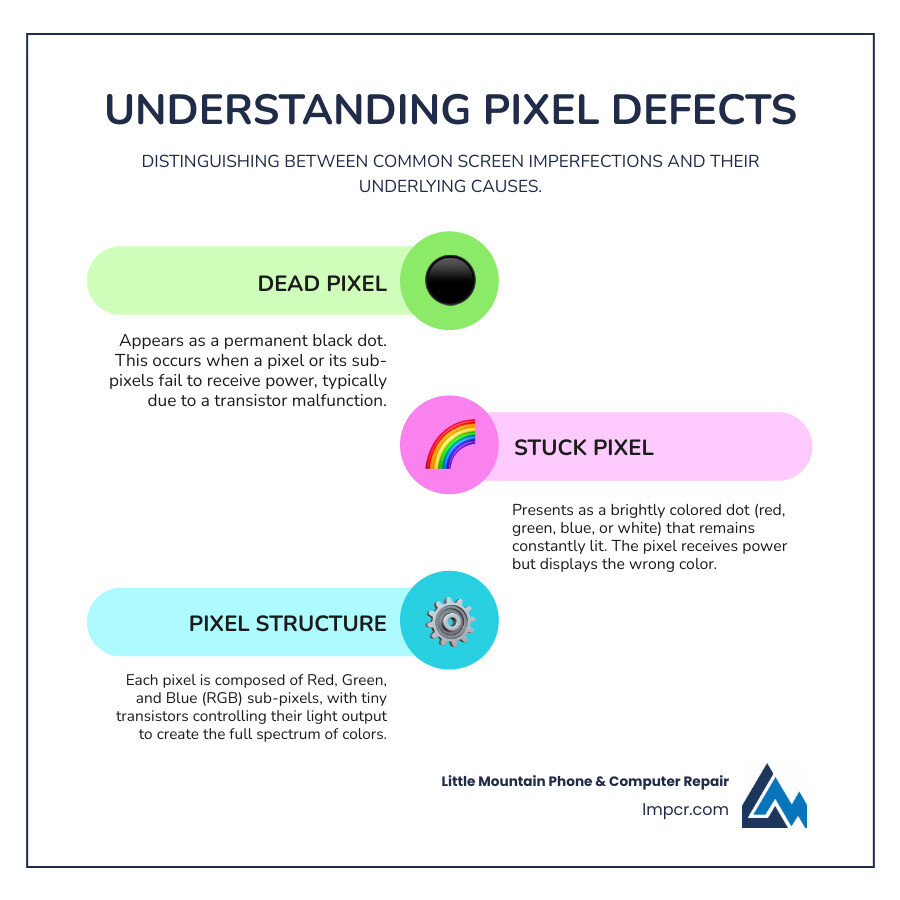
When you first notice a tiny, unwelcome spot on your screen, it’s natural to worry. Is it permanent? Will it get worse? The first step in effective dead pixel screen repair is identifying which type of defect you are seeing. The terms “dead pixel” and “stuck pixel” are often used interchangeably, but they represent different failures with very different odds of a successful DIY fix.
A helpful rule of thumb is to test the dot against multiple solid backgrounds (white, black, red, green, and blue). If the dot stays bright and colored on every background, it is likely stuck. If it stays dark on every background, it is more likely dead. If it changes color, flickers, or appears only on certain colors, you may be dealing with a single sub-pixel issue.
Let’s break down the key differences:
| Feature | Stuck Pixels | Dead Pixels |
|---|---|---|
| Appearance | Bright red, green, blue, or white dot | Small black or dark gray spot |
| Cause | Transistor stuck in the “on” position | Transistor receiving no power or “off” |
| Fixability | High (often fixed via software) | Low (often requires hardware replacement) |
| Visibility | Most visible on dark backgrounds | Most visible on light backgrounds |
Stuck pixels are one of the most common pixel defects. They typically appear as a persistent bright dot of a single color (red, green, blue, or sometimes white). This happens when one or more of the sub-pixels remains active regardless of what the screen is supposed to display.
Because the pixel is still receiving power, stuck pixels are the primary candidates for software-based dead pixel screen repair tools that cycle colors quickly. These tools do not “repair” hardware in the traditional sense, but they can sometimes encourage a sub-pixel to resume normal switching behavior.
Practical tip: if your dot is easiest to see on a black background and remains bright on black, that is often consistent with a stuck pixel.
Dead pixels appear as black or very dark dots because the pixel is completely unlit. This usually indicates a total transistor failure, a connection issue within the panel layers, or a manufacturing defect where that pixel is not receiving electrical current.
While dead pixels are harder to fix than stuck pixels, some pixels that look dead are actually severely stuck or intermittent. That is why it can still be worth running a safe software test first before you assume the screen must be replaced.
For more context on other types of display problems that can be confused with pixel defects (like pressure marks, cracks, backlight issues, or lines), read Understanding Different Types of Screen Damage.
Pixel defects can happen for several reasons, ranging from the assembly line to everyday use:
If you are having trouble seeing your screen clearly enough to diagnose the dot, increasing brightness, disabling night-mode filters, and checking contrast can help. On some displays you can also use built-in monitor controls; see Monitor system menu access for general guidance on accessing on-screen display menus.
Also note that not every small dot is a pixel defect. Dust under a screen protector, smudges, or a tiny surface chip can mimic a dead pixel at first glance. Before concluding you need dead pixel screen repair, gently clean the display surface and, if applicable, remove or replace the screen protector to rule out external causes.

Need Help?
© Big Hill Technologies, LLC. All Rights Reserved