-

-
Location:
1922 Mentor Ave, Painesville Twp.
Location:
1922 Mentor Ave, Painesville Twp.
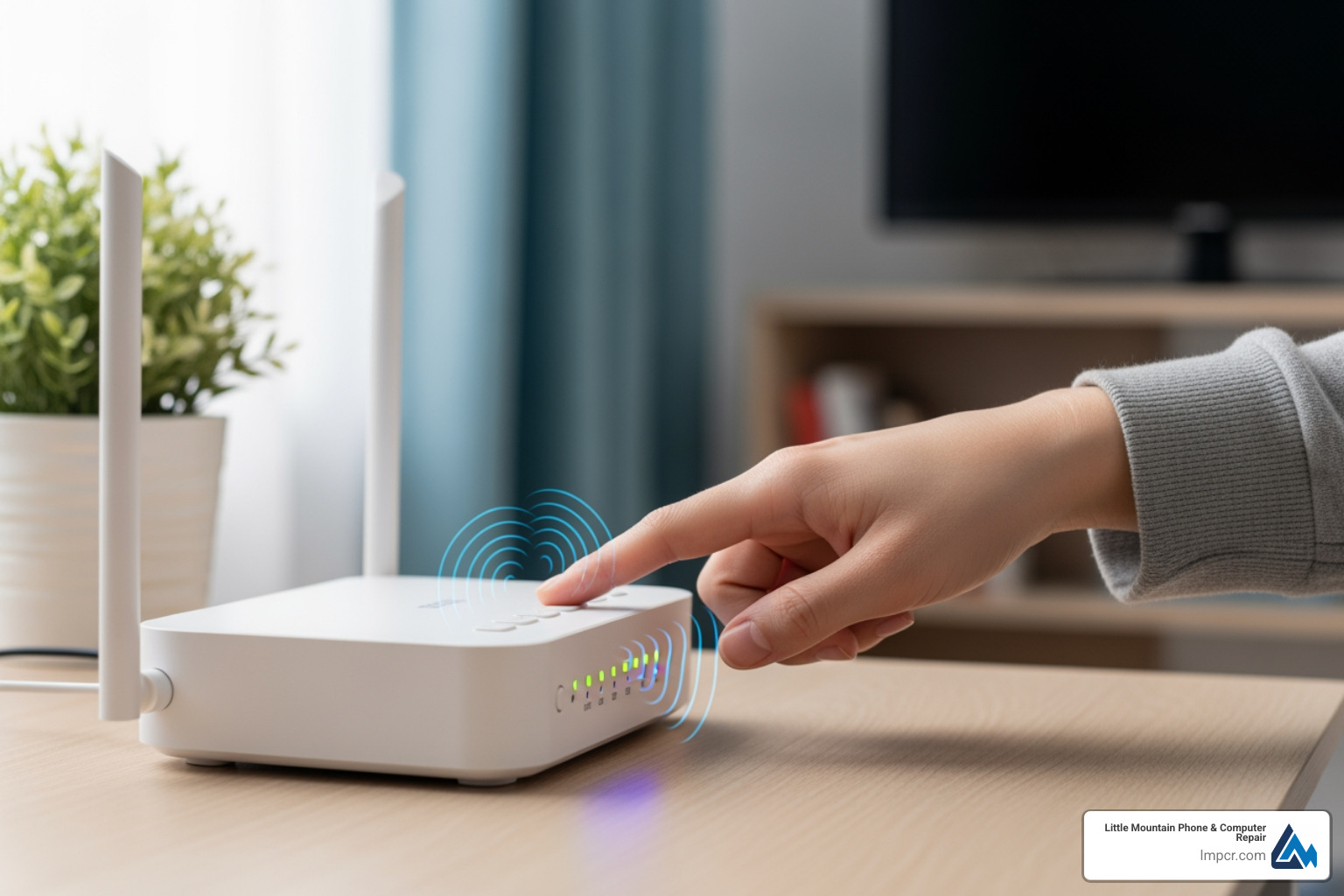
Wifi connectivity issues are among the most frustrating tech problems you’ll face. When your device shows you’re connected but nothing loads, it can stop your entire day in its tracks.
Quick fixes for common Wi-Fi problems:
ipconfig /release then ipconfig /renew in Command Promptipconfig /flushdns in Command Prompt as administratorStatistics show that 70% of users experiencing connectivity issues trace the problem back to router or modem hardware. With the average home now running 9 connected devices, minor configuration errors can cascade into major headaches. Furthermore, over 50% of users report Wi-Fi dead spots in their homes.
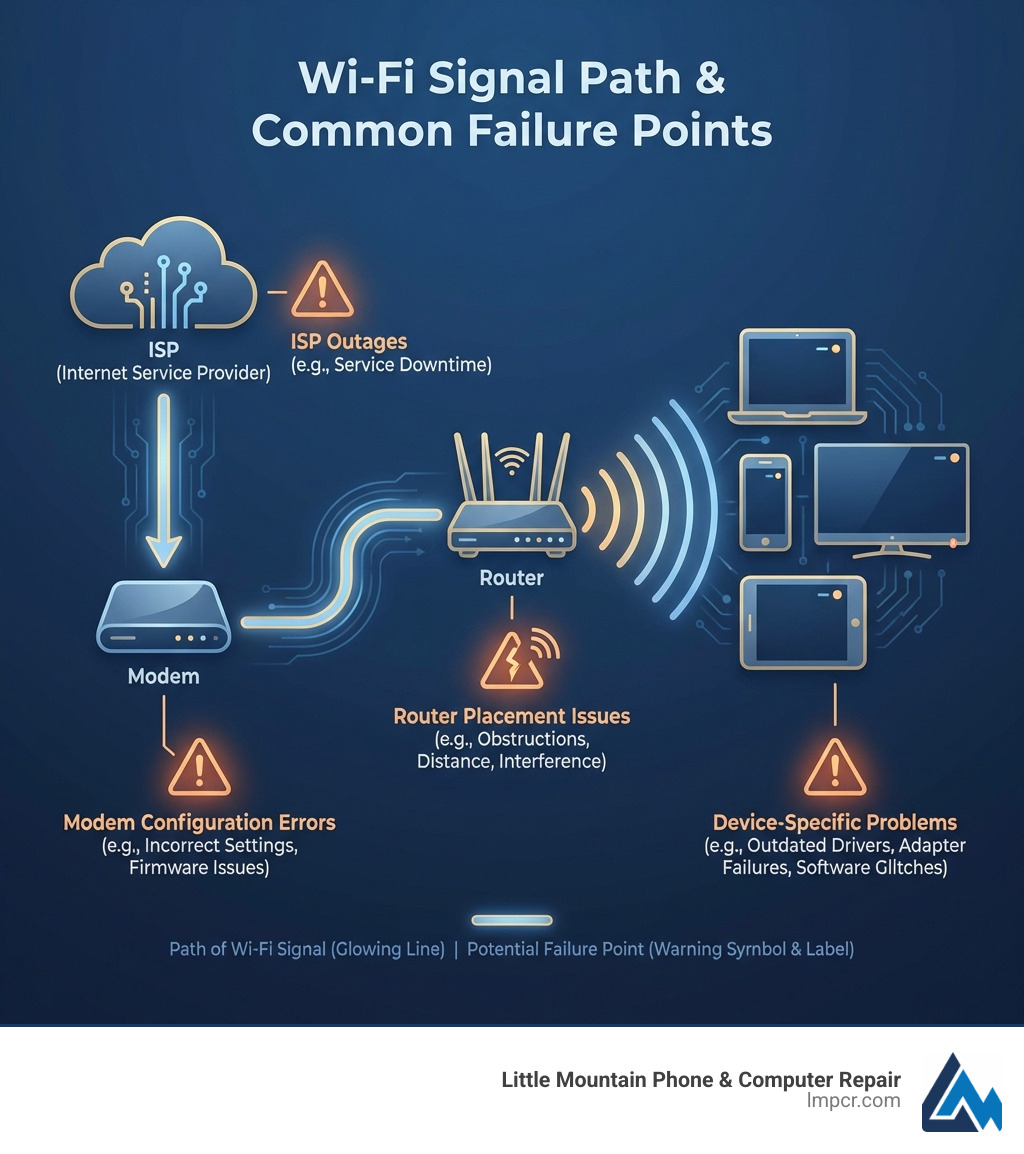
Your Wi-Fi signal travels from your ISP through your modem and router to your devices. When Windows shows “No Internet,” it’s often because a connectivity verification request failed. Issues can occur at any point in this chain, from the ISP’s network to your device’s network adapter.
As Jay Baruffa, President of Tech Dynamix and owner of Little Mountain Phone & Computer Repair, I’ve fixed thousands of Wifi connectivity issues for home users and local businesses. My team and I approach every problem systematically to find the root cause.
When your internet connection fails, there are several initial troubleshooting steps you can take in Lake County, Ohio. Many common Wifi connectivity issues can be resolved with simple actions.
The most effective step is a full power cycle. Unplug your router and modem for 30 seconds, then plug the modem back in first. Wait for its lights to stabilize before plugging in your router. Next, check physical connections. Loose or damaged Ethernet cables are common culprits. Ensure all cables are secure and check for visible wear.
Consider if the problem is external. ISP outages cause disruptions for approximately 15% of users. Check for local outages via your provider’s website or Downdetector. For residents in Mentor, Ohio, checking the local Spectrum status page is a good first step.
If your Windows PC shows ‘No Internet’ while connected to Wi-Fi, your device is on the local network, but the network isn’t reaching the wider internet. Windows determines this by sending an HTTP request; if it fails, the ‘No Internet’ icon appears.
A common sign of limited connectivity is an IP address in the 169.254.x.x range, indicating your PC couldn’t obtain a valid IP from the router’s DHCP server. Device-specific glitches, like outdated drivers or software bugs, can also cause this. For in-depth help, Microsoft provides a guide on how to Fix Wi-Fi connection issues in Windows. If you suspect a hardware problem, our team offers expert More info about computer repair services.
To diagnose whether an issue is wired or wireless, perform a speed test using tools like Speedtest.net or Ookla’s apps for iOS.
Slow internet speeds affect 60% of users with connectivity issues. Common causes include network congestion, outdated hardware, and weak signals. Limited bandwidth affects 30% of users, leading to buffering and lag. To manage this, prioritize devices in router settings, pause large downloads, and disconnect unused devices.
For more optimization tips, Learn more on our blog.
If you have Wi-Fi but no internet, the problem often lies in IP or DNS settings.
Renewing IP and Flushing DNS (Windows):
ipconfig /release and press Enter.ipconfig /renew and press Enter to request a new IP.ipconfig /flushdns and press Enter to clear the DNS cache.Mac users can renew the DHCP lease in System Settings > Network > Wi-Fi > Details > TCP/IP.
The Role of DNS Servers:
DNS servers translate website names into IP addresses. If your DNS is slow or unreachable, you won’t be able to browse. You can check your DNS by typing ipconfig /all in Command Prompt. If your ISP’s DNS is problematic, consider switching to Google DNS (8.8.8.8) or Cloudflare (1.1.1.1).
Ping Tests:
A ping test checks communication with a server. On Windows or Mac, type ping google.com in the terminal. “Request timed out” indicates a connection break. If you use a static IP, verify your settings with an IP subnet calculator.
Wi-Fi signals are radio waves affected by the physical environment. Router placement is a factor for 40% of users, while interference affects 35% of users.
Router Settings and Firmware:
Keep your router’s firmware updated to ensure performance and security. Access settings via the router’s IP (e.g., 192.168.1.1) to change channels or split Wi-Fi bands. Splitting 2.4 GHz and 5 GHz bands helps manage device connections effectively. If settings become too complex, a factory reset can resolve issues.
For professional assistance, Explore our full range of services.
In larger homes common in Concord Township or Kirtland, a single router often leaves dead spots. Over 50% of users report Wi-Fi dead spots, and 25% have considered extenders or mesh systems.
If basic steps fail, try these advanced troubleshooting methods:
netsh int ip reset and restart. On Mac, remove and re-add the Wi-Fi service in Network settings.Malware and Viruses:
Malware can consume bandwidth or hijack DNS settings. Use a reputable antivirus to run a full scan. For mobile devices, you can Scan for mobile security threats.
Network Reset:
If issues persist, our team specializes in Professional PC repair solutions.
A compromised network drains bandwidth and causes connectivity issues.
This usually indicates a device-specific issue. Check for incorrect network settings (like a proxy), outdated Wi-Fi drivers, or hardware failure on the laptop. Older laptops may also lack compatibility with newer Wi-Fi standards or the 5 GHz band.
We recommend replacing routers every five years. Signs of aging include frequent disconnections, slow speeds despite a fast plan, lack of WPA3 support, and an inability to handle multiple devices simultaneously.
Yes. Severe weather can damage ISP infrastructure. Satellite and fixed wireless internet are particularly susceptible to “rain fade” or signal interference from heavy precipitation and wind. Local power outages will also take down your network unless you have a battery backup.
Resolving Wifi connectivity issues is manageable with a systematic approach. From simple restarts to advanced DNS troubleshooting and optimizing router placement, these steps will help you maintain a stable connection for work and home life.
At Little Mountain Phone & Computer Repair, we have over 20 years of experience serving Lake County communities from Painesville to Willoughby Hills. We offer comprehensive diagnostics and hardware repairs with a 30-minute average repair time.
If you’re still experiencing problems, our experts are ready to help. Contact Us for expert assistance or Schedule your Computer Repair today to stay connected.

Need Help?
© Big Hill Technologies, LLC. All Rights Reserved


