-

-
Location:
1922 Mentor Ave, Painesville Twp.
Location:
1922 Mentor Ave, Painesville Twp.
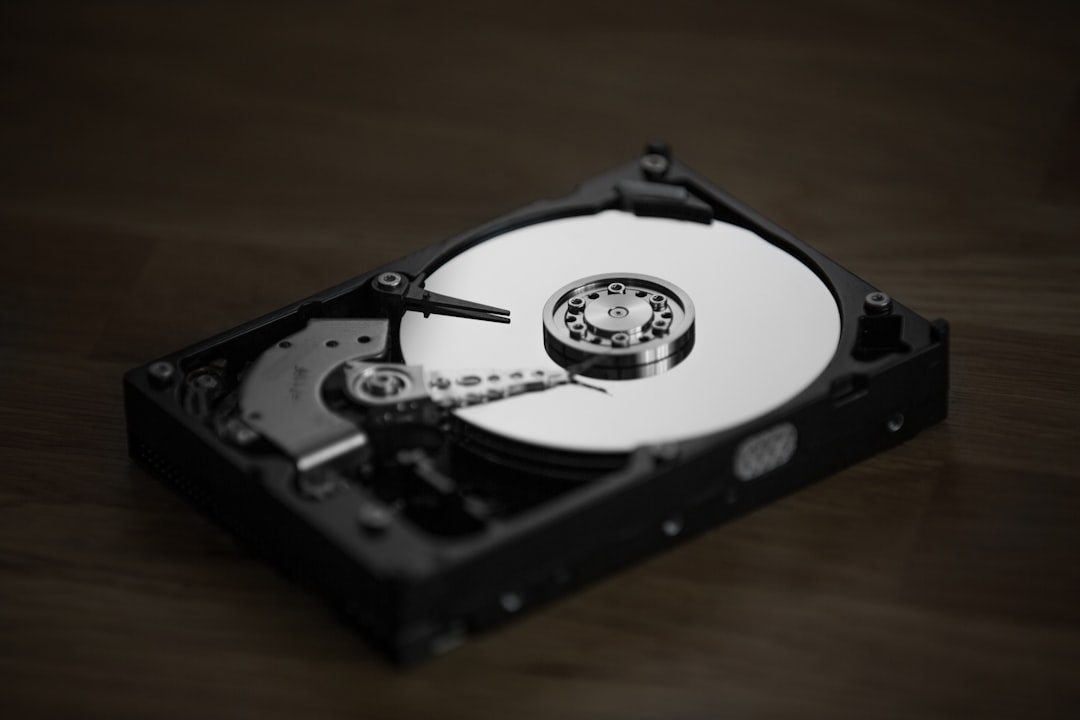
Computer hard drive recovery is the process of retrieving lost, inaccessible, or deleted files from a damaged or failing hard drive. Whether you can recover your data yourself depends on the type of failure you’re facing:
Quick Answer: Can You Recover Your Data?
| Failure Type | Symptoms | DIY Recovery? | Solution |
|---|---|---|---|
| Logical Damage | Deleted files, formatted drive, corrupted files, drive detected but inaccessible | Yes | Use recovery software like Disk Drill or PhotoRec |
| Physical Damage | Clicking sounds, beeping noises, drive not detected, grinding sounds | No | Requires professional clean bench work ($500-$3,000) |
You’re sitting at your computer when it happens. That horrible clicking sound. Or maybe your drive just disappears from your system entirely. Years of photos, documents, and irreplaceable files—gone in an instant.
Hard drive failure isn’t a question of if, but when. The average hard drive lasts just 4-7 years, and over half a million people face data loss emergencies every year. Some failures are simple—accidental deletion or file corruption that you can fix at home with the right software. Others are mechanical nightmares requiring specialized equipment and a steady hand.
The good news? You’re not helpless. Understanding the difference between logical damage (software issues) and physical damage (mechanical failure) is the first step to saving your digital life. If your drive still spins quietly and shows up in your system, you’ve got options. If it’s making noise or completely invisible to your computer, you’ll need professional help—fast.
I’m Jay Baruffa, President of Tech Dynamix and owner of Little Mountain Phone & Computer Repair in Painesville, Ohio. Over the years, I’ve guided countless customers through computer hard drive recovery crises, from simple file retrievals to complex mechanical failures, and I’ll walk you through exactly what to do when disaster strikes.
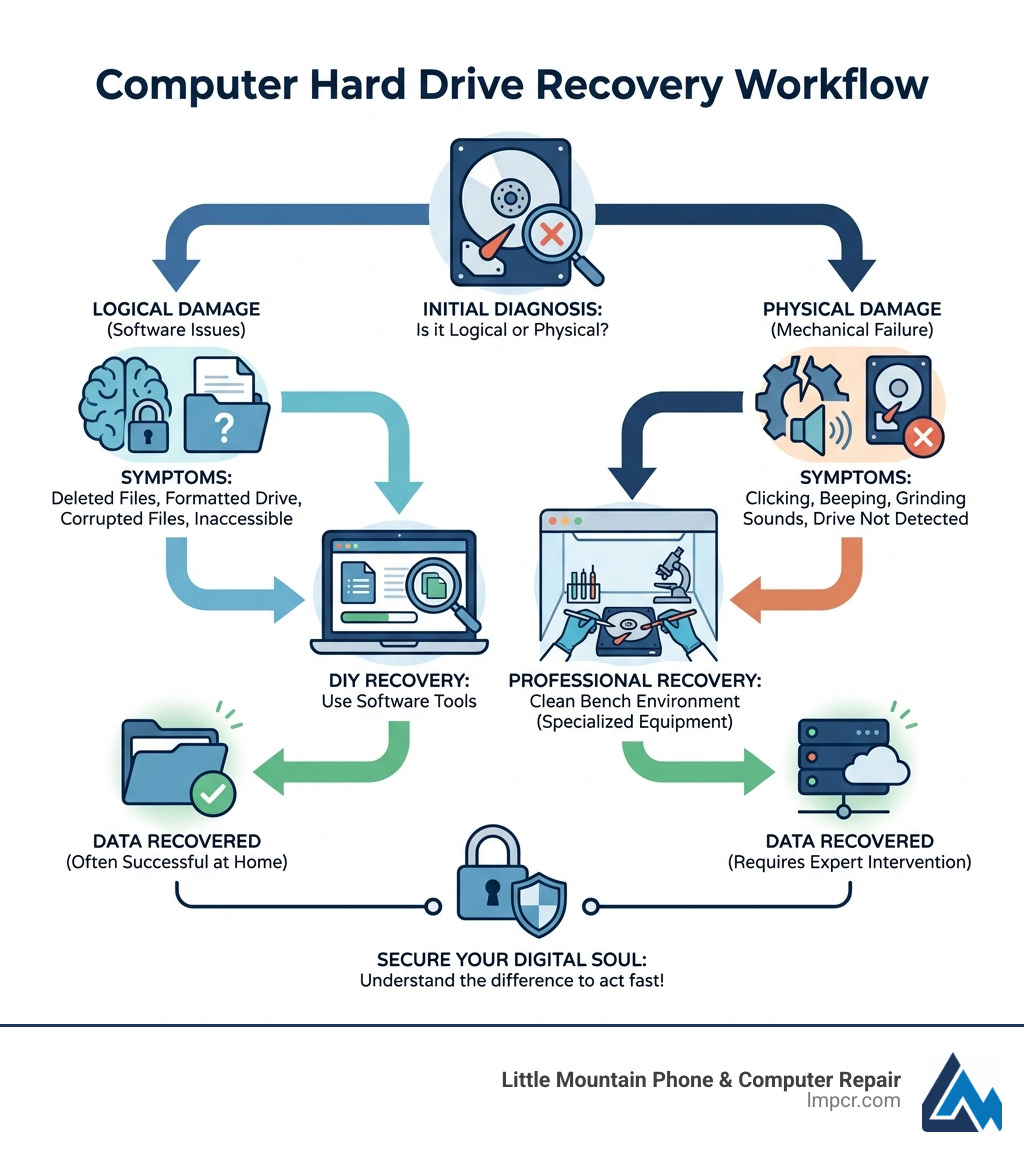
Before we dive into the “how-to,” we need to understand the “what happened.” In our 20+ years of experience serving Lake County, Ohio, we’ve found that almost all hard drive failures fall into two categories: logical and physical.
Think of logical damage as a software-level “misunderstanding.” The hardware itself is healthy—the platters are spinning, and the read/write heads are moving—but the data is scrambled or missing. This happens due to:
In these cases, computer hard drive recovery is often something you can handle at home with specialized software.
Physical damage is a hardware catastrophe. Traditional Hard Disk Drives (HDDs) use rotating magnetic platters and a tiny actuator arm that moves across them to read data. According to enterprisestorageforum.com, this mechanical nature makes them inherently vulnerable.
Common physical failures include:
Warning Signs of Physical Failure: If you hear clicking, grinding, or beeping, STOP. Turn the computer off immediately. Continuing to run a physically damaged drive is like trying to drive a car with a broken engine—you’re only making the damage worse. You can also check your drive’s health using S.M.A.R.T. (Self-Monitoring, Analysis, and Reporting Technology) tools, which act like a “check engine light” for your storage.
If you suspect your hardware is failing, our Computer Repair Category offers insights into how we handle these delicate situations in our Painesville and Mentor-area labs.
| Feature | Logical Damage | Physical Damage |
|---|---|---|
| Drive Status | Spins normally, recognized by BIOS | Clicking, beeping, or not spinning |
| Common Causes | Deletion, formatting, corruption | Drops, power surges, old age |
| Recovery Method | Data recovery software | Professional cleanroom service |
| Success Rate | High (if not overwritten) | Moderate to High (requires parts) |
If your drive is still recognized by your computer and isn’t making scary noises, you might be able to perform computer hard drive recovery yourself.
The most important step in DIY recovery is to create a “byte-to-byte” backup or disk image. Every time you scan a failing drive with recovery software, you’re putting stress on it. By creating an image, you can put the original drive aside and perform the recovery on a safe copy.
We often recommend a few reliable tools for home use:
You can find more detailed guides on how to recover data yourself to ensure you don’t miss a step. If the process feels overwhelming, don’t worry—our team provides professional Computer Repair services to take the weight off your shoulders.
Windows users have several built-in tools that can help fix minor logical issues before resorting to third-party software.
chkdsk X: /f (replace X with your drive letter). This tool finds and repairs file system errors.If these steps don’t work and you’re dealing with a laptop, you might need a more specialized Laptop Repair approach to safely remove the drive and test it on another machine.
Macs handle data a bit differently, using the APFS or HFS+ file systems. Here is how we recommend Mac users approach recovery:
For those using a MacBook Pro, many modern models have the “hard drive” (SSD) soldered to the motherboard, making DIY removal impossible. In those cases, professional intervention is your only safe bet.
Sometimes, software just isn’t enough. If your drive has suffered a mechanical failure, it needs to be opened in a specialized “cleanroom” or “clean bench” environment. Even a single speck of dust can destroy a hard drive platter spinning at 7,200 RPM.
When we take on a difficult computer hard drive recovery case, the process is clinical:
We’ll be honest: professional recovery isn’t cheap. According to HandyRecovery, fixing physical errors typically costs between $500 and $3,000. This covers the cost of donor parts, the use of cleanroom facilities, and the hours of expert labor required.
At Little Mountain Phone & Computer Repair, we pride ourselves on fair pricing and a “no data, no charge” evaluation policy for our neighbors in Painesville, Mentor, and Chardon. We also offer Data Backup & Recovery services to help you set up a system so you never have to pay those high recovery fees again.
Yes, but it’s difficult. If the BIOS (the basic software that starts your computer) can’t see the drive, it usually means there is a physical problem with the PCB or the firmware.
You can learn more about these scenarios in our guide on Data Recovery: How to Protect Your Valuable Files.
Absolutely not. You might see old forum posts suggesting you put a clicking drive in the freezer to “shrink” the metal parts and get it to spin one last time. Do not do this. Modern drives have incredibly tight tolerances. Putting a drive in the freezer creates condensation (water) inside the drive when you take it out. This water will destroy the platters and make your data 100% unrecoverable. It’s an outdated myth that causes more harm than good.
The best way to handle a hard drive crash is to make it a non-event through preparation:
We can help you implement these strategies through our Data Backup & Recovery services, ensuring your “digital soul” is always safe.
Losing your data feels like losing a part of yourself, but computer hard drive recovery offers a path back to normalcy. Whether it’s a simple logical fix you handle at home or a complex mechanical surgery in a lab, most data loss situations have a solution.
At Little Mountain Phone & Computer Repair, we’ve spent over 20 years serving our community—from Painesville and Concord to Madison and Willoughby. We understand that your files are more than just ones and zeros; they are your memories, your hard work, and your business. With our 30-minute average repair times and expert technicians, we are dedicated to getting you back up and running as quickly as possible.
If you’re in Lake County and facing a digital disaster, don’t wait. The sooner you stop using a failing drive, the higher the chance of a successful recovery. Visit us today for a professional Data Backup & Recovery consultation, and let us help you save your digital soul.

Need Help?
© Big Hill Technologies, LLC. All Rights Reserved
