-

-
Location:
1922 Mentor Ave, Painesville Twp.
Location:
1922 Mentor Ave, Painesville Twp.
Tablet not turning on is one of the most frustrating tech problems you can face. Your device is completely unresponsive, the screen stays black, and you’re left wondering if it’s dead for good.
Quick Answer: Most tablets that won’t turn on have one of these fixable issues:
If none of these work, you likely have a hardware failure that needs professional repair.
The good news? Most tablets aren’t actually broken. They’re just stuck in a deep discharge state, locked up by a software glitch, or dealing with a simple charging issue. Before you assume your device is toast, there are several proven troubleshooting steps that work across Samsung Galaxy Tabs, Amazon Fire tablets, iPads, and other Android devices.
I’m Jay Baruffa, and I’ve been diagnosing and repairing non-responsive tablets for years at Little Mountain Phone & Computer Repair. Whether you’re dealing with a tablet not turning on after it died completely or one that’s stuck on a charging screen, I’ll walk you through the exact steps that work in our shop every day.
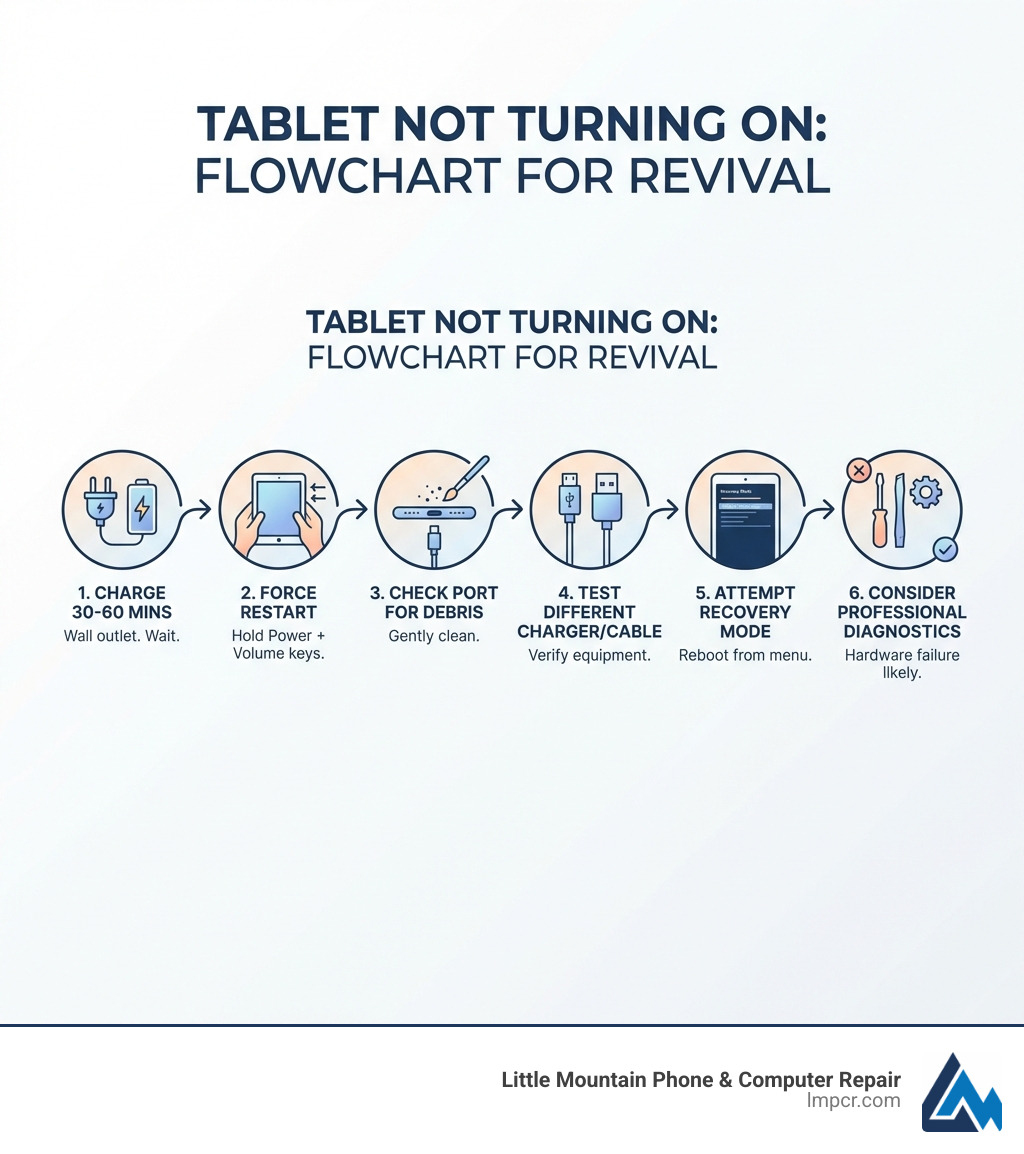
When we see a tablet in our Chardon or Mentor shops that won’t power up, we usually narrow it down to five or six common culprits. Understanding these can save you from a lot of unnecessary stress.
If you are using an Apple device and it’s stuck on the logo or won’t boot, you might need an iPad Recovery Mode guide to force a software refresh. For more localized help, you can explore our tablet repair services across Lake County.
Samsung tablets are notorious for entering a deep sleep that requires more than a simple tap of the power button. If your Galaxy Tab is unresponsive, you need to perform a “Soft Reset.”
In many cases, holding the Volume Down button for 10-15 seconds while the charger is connected can “wake up” the charging circuit. If your screen remains black but you hear a vibration or sound, the issue might be the display itself rather than the power. If these tricks don’t work, it might be time for a professional Samsung Galaxy Tab Repair.
Amazon Fire tablets have a specific “hard reset” protocol. If your Fire tablet isn’t turning on, remove any case or cover first, as these can sometimes interfere with button presses. Press and hold the power button for a full 40 seconds. This forces the hardware to cut power and reboot.
For Google Pixel Tablet users, ensure you are using a charger that supports at least 15W Power Delivery (PD). If you use the unique Charging Speaker Dock, ensure the dock is plugged in and you hear the “boot chime” when the tablet is attached. If the dock isn’t working, try a standard USB-C cable directly into the tablet’s port. You can find more specific Fire Tablet support on Amazon’s official help pages.
If your tablet is “playing dead,” we need to make sure it’s actually getting “food” (electricity). Not all chargers are created equal, and a dirty port can act like a blocked straw.
We often hear, “But I’ve had it on the charger for hours!” Here is the catch: if you’re using a low-power phone brick or a laptop USB port, it might not be enough.
| Feature | Phone Adapter | Tablet Adapter |
|---|---|---|
| Wattage | 5W | 10W – 15W+ |
| Charging Speed | Very Slow / None | Fast / Standard |
| Compatibility | Small Devices | Large Screens / Tablets |
If your tablet not turning on after a long charge, try these steps:
If you’re an Apple user, checking our iPad Service Category can give you more insight into specific battery health indicators for iOS.
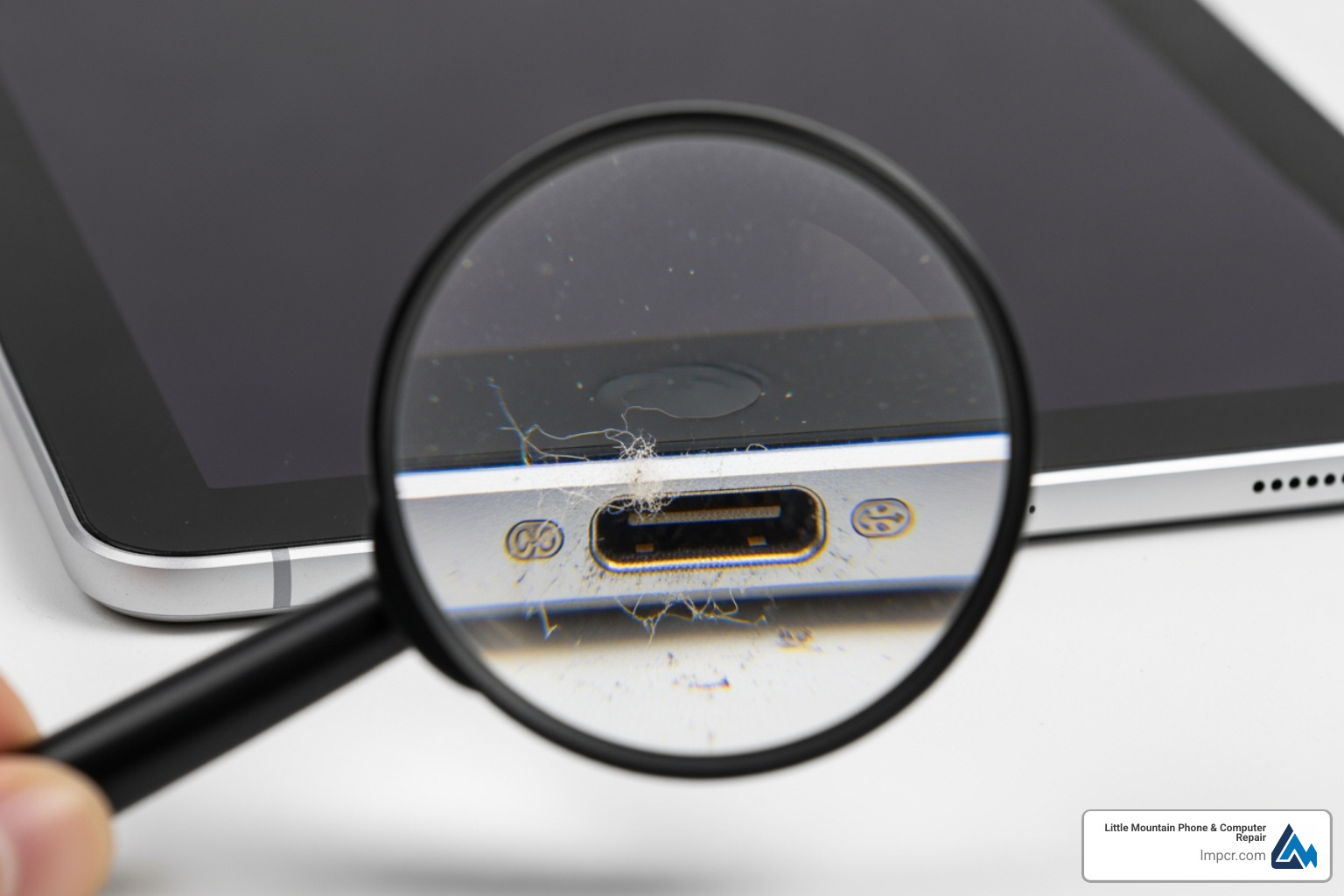
Over time, your tablet’s port collects lint from bags, couches, and pockets. This debris prevents the cable from seating fully.
For those in Willoughby or Eastlake looking for more maintenance tips, check out our guide on Speedy Solutions for Smart Devices.
If your tablet has power but refuses to move past the logo screen, the “brain” of the device is likely stuck. This is where we look at software-level “surgery.”
Recovery mode is a separate environment from your main operating system. It allows you to fix system errors without fully booting the tablet.
Once in recovery mode, your first choice should always be “Reboot system now.” This is a safe restart that doesn’t delete data. If you’re still stuck, you can try to Unbrick your Android tablet using more advanced PC-based tools. For general questions on these modes, visit our Frequently Asked Questions.
This is the “nuclear option.” A factory reset will erase every photo, app, and file on the tablet. You should only do this if:
To do this, select “Wipe data/factory reset” from the recovery menu. This cannot be undone! You can see our full list of All Repair Services if you’d rather have a professional handle the data backup and recovery process for you.
Sometimes, no amount of button-pressing will help. Physical damage is often hidden.
For a deeper dive into hardware diagnostics, the iFixit Samsung Troubleshooting guide is an excellent resource for DIYers, though we recommend professional help for internal repairs to avoid damaging sensitive components.
Is the tablet dead, or is the screen just not showing anything?
If you suspect a screen issue, our Tablets and iPad Repair page explains how we swap out displays to bring devices back to life.
This usually means the battery is too weak to support the “surge” of power needed to start the operating system. Leave it on a high-quality wall charger for at least two hours. If it still won’t boot, the battery likely can no longer hold a sufficient charge and needs replacement.
This is a classic sign of a failed backlight or LCD. The “guts” of the tablet are working, but the “eyes” are closed. Since the device is recognized, you should take this opportunity to back up your data via the computer before sending it in for a screen repair.
A deeply drained battery will usually show a charging icon after 30-60 minutes of being plugged in. A failed battery might cause the tablet to get very hot while charging, show a “X” over the battery icon, or allow the tablet to turn on only when it’s plugged into the wall.
A tablet not turning on doesn’t have to mean a trip to the electronics recycler. From the “40-second hold” on an Amazon Fire to cleaning out a dusty port in your Samsung Galaxy Tab, most fixes are simpler than they seem. However, if you’ve tried the resets, swapped the cables, and cleaned the ports, and that screen is still staring back at you in total darkness, it’s time for an expert opinion.
At Little Mountain Phone & Computer Repair, we have over 20 years of experience bringing “dead” tech back to life. We proudly serve neighbors in Painesville, Mentor, Chardon, Willoughby, and throughout Lake County. Most of our tablet repairs, like battery swaps or port cleanings, have an average 30-minute turnaround time, so you won’t be without your device for long.
Don’t guess with your expensive hardware. If your tablet is still playing dead, bring it to us for a professional diagnostic. You can Schedule a Repair online or drop by one of our locations today. We’ll help you wake that tablet up and get you back to your movies, games, and work in no time!

Need Help?
© Big Hill Technologies, LLC. All Rights Reserved