-

-
Location:
1922 Mentor Ave, Painesville Twp.
Location:
1922 Mentor Ave, Painesville Twp.
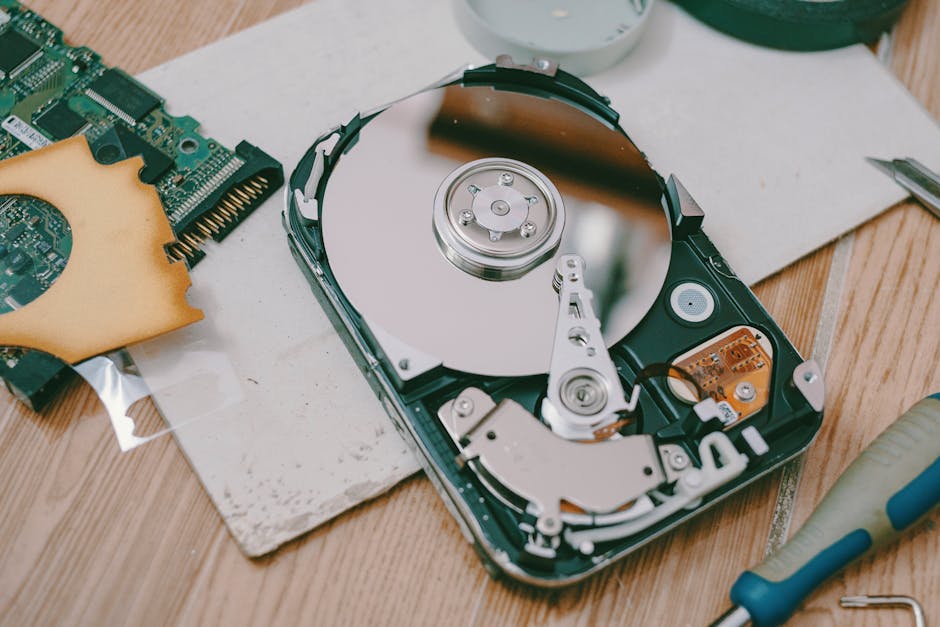
Data recovery is the process of retrieving lost, deleted, or inaccessible files from a storage device — whether caused by accidental deletion, hardware failure, corruption, or malware.
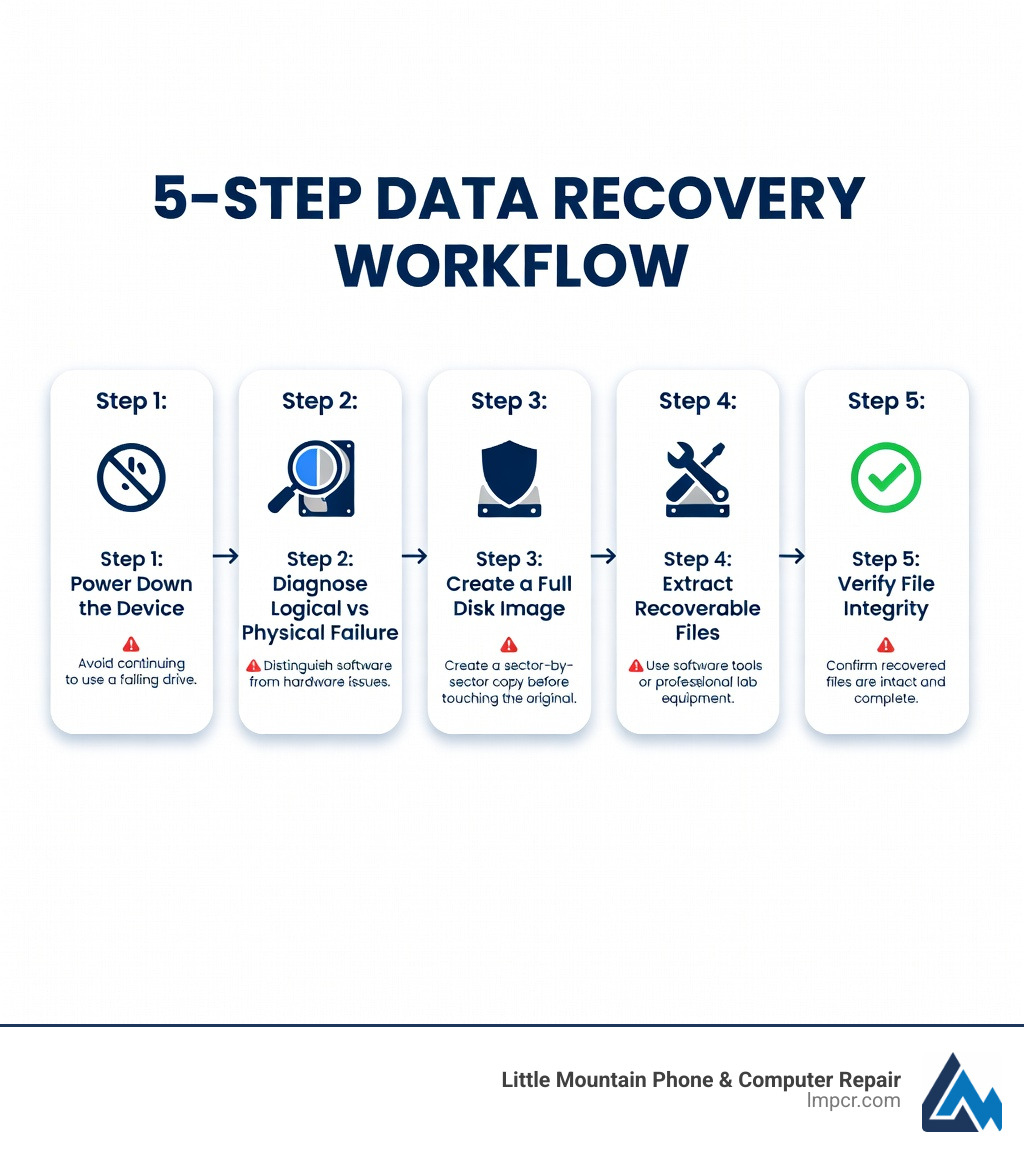
Here’s how data recovery works in 5 steps:
Data loss hits harder than most people expect. Nearly 26% of users worldwide will experience it at some point — and for businesses, the stakes are even higher. Over half of companies that suffer a major data loss event never fully recover.
It doesn’t matter if you’re dealing with a family photo collection on a USB drive or years of business records on a RAID server. The same core principles apply.
I’m Jay Baruffa, President of Little Mountain Phone & Computer Repair, and I’ve spent years helping everyday people and local businesses navigate data recovery situations that seemed hopeless at first. In this guide, I’ll walk you through exactly what to do — and what not to do — when your data goes missing.
Before we can get your files back, we have to figure out why they left in the first place. In data recovery, we split failures into two main camps: logical and physical. Understanding which one you’re facing is the difference between a successful DIY project and a permanent “goodbye” to your files.
Logical failure happens when your hardware is perfectly healthy, but the data is inaccessible. Think of it like a library where someone has burned the card catalog. The books (your data) are still on the shelves, but the system used to find them is gone.
Common causes include:
In these cases, the drive still spins up and shows up in your computer’s Disk Management or Disk Utility.
Physical failure is much more serious. This occurs when the storage media itself is damaged. If your hard drive is making a clicking, grinding, or whirring sound, stop everything. You are likely experiencing a “head crash.”
To give you an idea of how delicate these machines are, the read/write heads in a traditional Hard Disk Drive (HDD) float just 3 to 6 nanometers above the platter surface. For perspective, a single grain of dust is about 30,000 nanometers in diameter. If a dust particle gets inside your drive, it’s like a giant boulder hitting a speeding car. This is why professional data recovery for physical damage must happen in a Class 100/ISO 5 cleanroom.
| Feature | Logical Failure | Physical Failure |
|---|---|---|
| Drive Status | Spins normally, recognized by PC | Clicking, beeping, or not spinning |
| Common Cause | Deletion, virus, formatting | Dropped device, fire/water, wear and tear |
| DIY Potential | High (with the right software) | Extremely Low (Risk of permanent loss) |
| Recovery Method | Scanning software, file carving | Part replacement, cleanroom imaging |
If you want a deeper dive into these technical distinctions, you can check out this Data recovery explained by IBM.
Whether you are in Painesville, Mentor, or Chardon, if you’ve lost data, you’re likely in a bit of a panic. Take a deep breath. Following these five steps will give you the best chance of seeing your files again.
The moment you realize files are missing or a drive is acting up, turn it off. If it’s an external drive, unplug it. If it’s your computer, shut it down.
Why? Because computers are constantly writing data to the background—temp files, logs, and updates. If you deleted a file, the space it occupied is marked as “available.” Every second the computer stays on, it risks overwriting that “available” space with new data, making the old file unrecoverable. If the drive is physically failing, every rotation of the platters could be scraping away the magnetic coating where your data lives.
Now, determine the failure type.
If you suspect physical damage, do not attempt to fix it yourself. We’ve seen many folks try the “freezer trick” or try to open a drive on their kitchen table. Please, don’t. You’ll likely turn a recoverable situation into a permanent loss.
This is the most critical step that DIYers often skip. You should never run recovery software directly on the original failing drive. Instead, we create a sector-by-sector clone (an “image”) of the drive onto a healthy piece of hardware.
By working off a clone, you can try different recovery methods without stressing the original, fragile device. If the recovery software crashes or the clone gets corrupted, your original data is still safe on the source drive.
Once we have a healthy image, we use specialized tools to extract the files. For logical issues, this often involves file carving. This technique bypasses the corrupted file system (the “card catalog”) and looks for “headers” and “footers” of specific file types (like the bits that make up a .JPG or a .DOCX).
The final step is making sure the data actually works. Sometimes files are recovered, but they are “corrupt” and won’t open. We verify the integrity of the most important files—your family photos, your tax returns, or your business spreadsheets—to ensure the recovery was a success.
If you’re feeling overwhelmed and need a pro nearby in Lake County, check out our More info about finding recovery services nearby.

We get asked all the time: “Can’t I just download a free tool and do this myself?”
The answer is: sometimes. If you accidentally deleted a photo from a healthy SD card, a DIY software tool is a great first step. However, if your business server is down or your laptop took a tumble down the stairs at the Great Lakes Mall, the “cheap” option could cost you everything.
DIY data recovery on a failing drive is like performing surgery on yourself. Without the right environment and equipment, you risk:
Reputable professional labs boast a success rate of around 98%. This is because they have access to:
For those interested in the technical standards used by the government to handle these situations, the NIST techniques for system and data recovery provide a great framework for how we think about data integrity.
We’ve seen just about every data recovery scenario you can imagine at our shops in Mentor and Painesville. Here are the answers to the questions we hear most often.
This is the “million-dollar question.” Because every case is unique, flat pricing is rare in the industry. However, costs are generally determined by:
Many reputable shops, including us, operate on a “No Data, No Charge” policy. If we can’t get your critical files back, you shouldn’t have to pay a massive bill.
Yes, but it’s much harder than an HDD. Solid State Drives (SSDs) use something called the TRIM command and Garbage Collection. When you delete a file on an SSD, the drive actively tries to wipe those cells to keep the drive fast.
Furthermore, SSDs use a Flash Translation Layer (FTL) to spread data across the chips. If the controller chip on the SSD fails, the data is essentially a scrambled puzzle. Professional recovery involves “unsoldering” the memory chips and using specialized emulators to reconstruct the data. It’s complex, but very possible.
The best data recovery is the one you never have to do. We always recommend the 3-2-1 backup rule:
Cloud syncing services like iCloud or OneDrive are great for everyday use, but they aren’t a true backup because if you delete a file on your phone, it deletes it from the cloud too! For more tips, read our guide on Protecting your valuable files.
Data loss is stressful, but it doesn’t have to be permanent. Whether you’ve lost precious family memories or critical business documents, the steps you take in the first hour after the loss occur will determine the outcome. Remember: Power down, don’t panic, and get a professional diagnosis.
At Little Mountain Phone & Computer Repair, we’ve spent over 20 years serving our neighbors across Lake County—from Wickliffe to Madison and everywhere in between. We pride ourselves on our 30-minute average repair times for common issues and our comprehensive approach to complex data recovery cases.
If you’re staring at an empty folder or a clicking drive right now, we’re here to help. You can find more details about our Expert data backup and recovery services on our website, or just stop by one of our local shops. Let’s get your data back where it belongs.

Need Help?
© Big Hill Technologies, LLC. All Rights Reserved