-
March 27, 2026
-
No Comments
The Ultimate Fix for Any Charging Port
The Ultimate Fix for Any Charging Port
Why Your Tablet Charging Port Matters More Than You Think
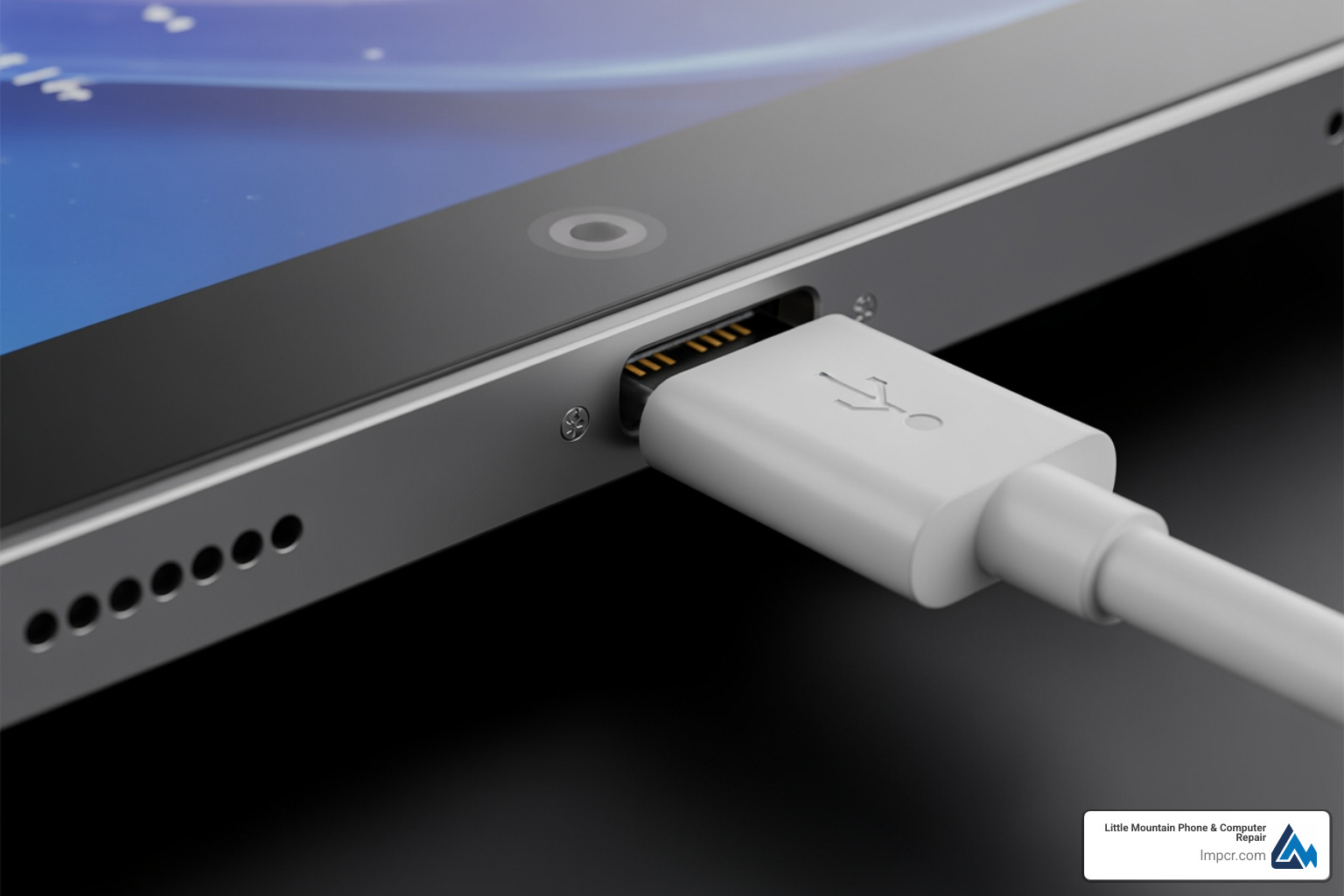
Tablet charging port issues are among the most common problems device owners face. In our modern world, tablets have evolved from simple media players into essential tools for education, remote work, and creative expression. When the port fails, it effectively bricks the device, cutting you off from your files, apps, and communication. If you are experiencing trouble, here is a quick diagnosis:
- Wiggling the cable to charge = loose or damaged port
- Intermittent charging = debris or port wear
- Moisture warning = safety feature preventing power flow
- No response = port, battery, or adapter failure
Common causes include dirt buildup, physical damage from rough handling, worn cables, or software glitches. Many issues can be fixed without replacing the entire tablet. Knowing when to troubleshoot and when to seek expert help is key. Whether you are a student in Chardon or a professional in Willoughby, a reliable charge is non-negotiable.
A tablet that will not charge is unusable. Whether it is an iPad or a Samsung Galaxy Tab, the port sees constant wear. I am Jay Baruffa, President of Tech Dynamix and owner of Little Mountain Phone & Computer Repair in Painesville, Ohio. I have spent years diagnosing every type of tablet charging port failure, from simple cleaning to complex logic board repairs.
Identifying a Faulty Tablet Charging Port
Pinpointing whether your tablet charging port is the culprit is the first step. You don’t want to replace a port if the issue is just a bad cable. Often, users assume the battery is dead when the real issue is simply a lack of power delivery through a compromised connection.
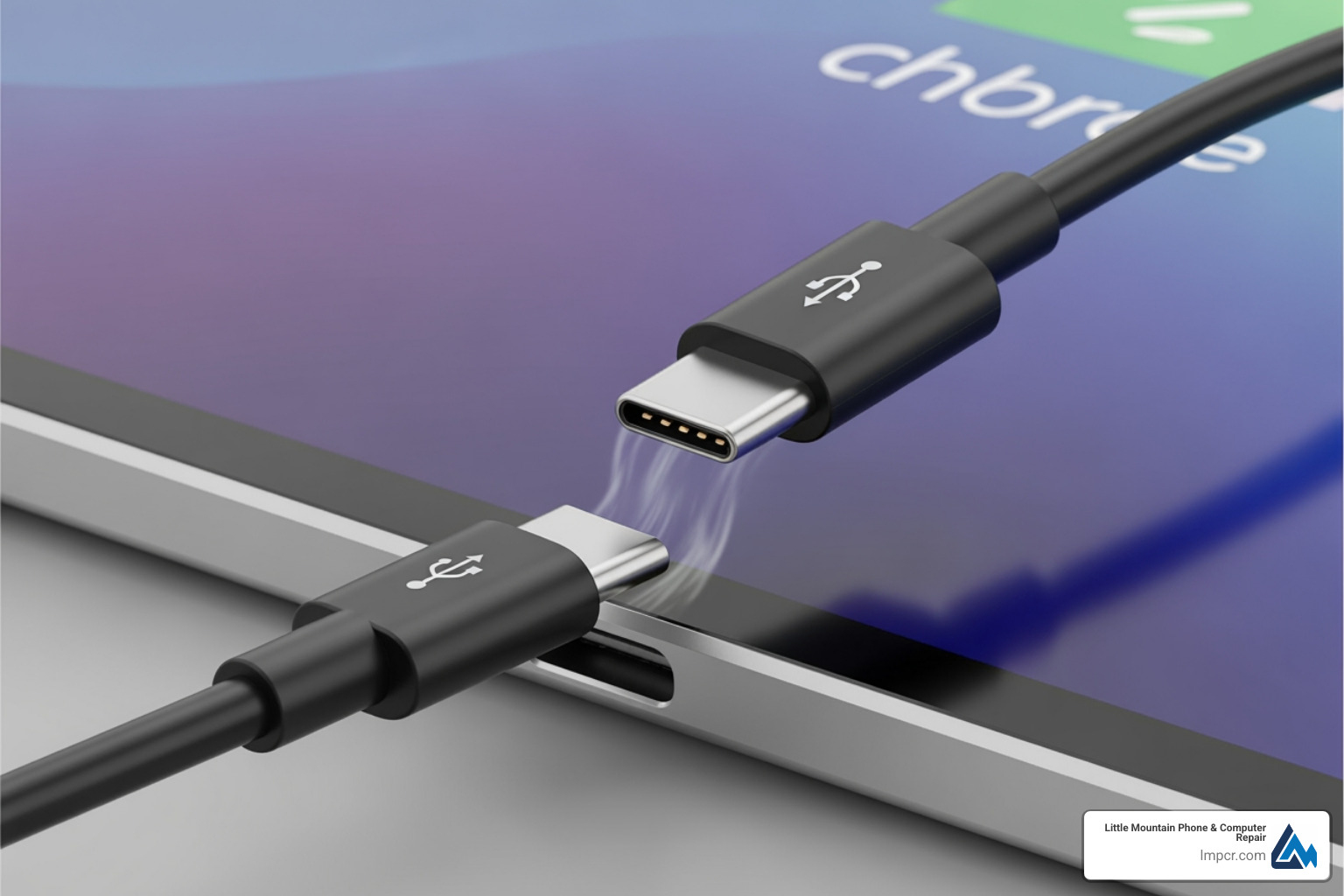
Signs Your Tablet Charging Port Needs Attention
- Wiggling Cables: If you must hold the cord at an angle, the internal connection is likely loose or worn. This is often caused by using the device while it is plugged in, putting lateral pressure on the port.
- Loose Socket: If the cable feels “sloppy” when plugged in, the port housing or contacts are damaged. A healthy port should provide a satisfying “click” or firm seat.
- Slow Charging: Damaged pins can reduce power flow, leading to extremely slow charge times. If your tablet takes 12 hours to charge, the port may be providing high resistance.
- Visible Damage: Use a flashlight to check for bent pins, corrosion, or debris. Even a tiny amount of lint can prevent the cable from making full contact.
- Moisture Warnings: Samsung models often show a waterdrop icon if moisture is detected, disabling the port for safety. This can sometimes be triggered by high humidity or sweat.
Distinguishing Between Charger and Port Issues
- Test Your Charger: Try a different high-quality cable and adapter. As Samsung suggests, “Use official Samsung chargers and cables for optimal charging efficiency.” See their Charging your smartphone or tablet guide for more.
- Try a Different Power Source: Test a different wall outlet or a computer USB port to rule out electrical issues at the source.
- Check Software: Glitches can sometimes stop charging. A simple forced restart can often resolve software-based power management issues.
| Symptom |
Faulty Port |
Faulty Battery |
Faulty Charger |
| Works at angles |
Yes |
No |
Sometimes (broken cable) |
| Loose connection |
Yes |
No |
No |
| No charge at all |
Yes |
Yes |
Yes |
| Slow charging |
Yes |
Yes |
Yes |
| Dies at 20% |
No |
Yes |
No |
| Moisture warning |
Yes |
No |
No |
If you’re still unsure, check our FAQ for more answers.
DIY Troubleshooting for Your Tablet Charging Port
Many charging issues can be resolved at home. Try these steps before visiting a repair shop.
Cleaning the Charging Port
Lint and debris are common culprits for a poor connection.
- Power Down: Turn off the tablet to avoid shorts.
- Inspect: Use a flashlight to look for debris.
- Compressed Air: Use short bursts of air to dislodge dust. Keep the can upright.
- Toothpick Method: Gently use a wooden or plastic toothpick to remove stubborn grime. Never use metal objects like paperclips, as they can short-circuit the port.
- Re-test: Plug in the charger to see if it works.
Software Fixes for Charging Problems
- Restart: A simple reboot can clear bugs interfering with power management.
- Clear USB Cache: On Android, go to Settings > Apps > System Apps > USB Settings and clear the cache to reset moisture sensors.
- Safe Mode: Boot into safe mode to see if a third-party app is blocking the charge.
- Update Software: Ensure your OS is up to date to fix known power bugs.
- Remove Case: Some cases prevent the cable from seating fully.
For iPad owners in Painesville or Mentor, these steps are a great start. We also offer specialized iPad Repair if the problem persists.
Preventative Measures for Port Longevity
- Use Quality Accessories: Cheap cables can damage internal pins.
- Gentle Handling: Insert and remove cables straight, not at an angle.
- Avoid Use While Charging: This reduces physical strain on the port.
- Dust Plugs: Small plugs can keep lint out of the port.
- Magnetic Cables: These reduce wear by leaving a tip permanently in the port.
Following these tips will keep your Galaxy Tab or iPad charging reliably.
How to Repair or Replace a Tablet Charging Port
If DIY steps fail, you likely have a hardware failure. Replacing a tablet charging port varies in difficulty based on the model.
The Replacement Process Step-by-Step
Some tablets use a separate “daughterboard” for the port, while others have it soldered to the main logic board.
- Tools Needed: Spudgers, Phillips #000 screwdrivers, a heat gun, tweezers, and ESD-safe equipment. Soldered ports require a soldering iron and flux.
- Disassembly: Power off the device. Use a heat gun to soften adhesive on the screen or back cover. Carefully pry the case open, avoiding internal ribbon cables. Guides like the Samsung Galaxy Tab 2 10.1 Charger Port Replacement show this process.
- Disconnect Battery: This is vital to prevent shorts.
- Access the Port: Remove brackets and ribbon cables. If it’s a daughterboard, swap it out. If soldered, you must desolder the old port from the motherboard.
- Soldering: This requires a steady hand and experience. Use a soldering iron or hot air station to remove the old port and install the new one, ensuring no solder bridges form between pins.
- Reassembly: Reverse the disassembly steps, reconnecting all cables and securing the case.
This complexity is why Tablet Repair usually requires professional expertise.
Risks of DIY Tablet Charging Port Repair
- Further Damage: It’s easy to crack a screen or tear a ribbon cable.
- Static Discharge: Static can fry sensitive internal circuits.
- Punctured Battery: Lithium-ion batteries are dangerous if damaged during prying.
- Voided Warranty: Opening the device usually voids manufacturer warranties.
- Incorrect Parts: Using the wrong port revision can cause permanent board damage.
Unless you have micro-soldering experience, professional repair is the safer choice.
Professional Repair: Costs, Time, and Reliability
At Little Mountain Phone & Computer Repair, we specialize in fixing stubborn tablet charging port issues quickly and reliably. We understand that your tablet is a vital part of your daily routine, and we treat every repair with the urgency it deserves.
What to Expect from a Repair Shop
- Free Diagnostics: We identify the root cause for free, so you know exactly what the fix entails before committing to a price.
- Expert Technicians: With 20+ years of experience, we handle everything from simple cleanings to complex board soldering. Our team stays updated on the latest iPad and Android hardware revisions.
- Quality Parts: We use high-quality components that meet original specifications to ensure longevity and proper power delivery.
- Warranty: We offer a 1-year limited warranty on most repairs for your peace of mind. If the part fails due to a defect, we will make it right.
- Comprehensive Services: We also handle cracked screens, battery issues, and Data Recovery. We are your one-stop shop for Tablets iPad Repair in Painesville.
Average Costs and Turnaround Times
- Cost: Charging port repairs typically range from $90 to $160, depending on the model. This is much cheaper than buying a new tablet, which can cost upwards of $800 for premium models.
- Turnaround Time: We pride ourselves on speed. Many port repairs are completed the same day, often within hours. Our average repair time for common issues is about 30 minutes. We understand you need your device back fast and work diligently to make that happen for our neighbors in Mentor and Lake County.
We provide transparent quotes and competitive pricing without compromising on the quality of the repair. Our goal is to provide a service that is both affordable and reliable.
Frequently Asked Questions about Tablet Repairs
Can a charging port be cleaned without opening the tablet?
Yes. Power down the device and use compressed air or a plastic toothpick to gently remove lint. Never use metal, as it can damage the pins. If you are uncomfortable doing this yourself, our team in Painesville can perform a professional cleaning in just a few minutes to ensure no damage occurs.
Is it cheaper to repair the port or buy a new tablet?
Repairing is almost always cheaper. With repairs costing $90-$160 and new tablets costing hundreds or thousands, a repair is a smart investment for a device in otherwise good condition. It also keeps electronic waste out of landfills, making it an eco-friendly choice for residents in Lake County.
Does water damage in the port always require a replacement?
Not always. If you see a moisture warning, power off the device and let it dry for 24-48 hours. You can also clear the USB settings cache. If it still won’t charge after drying, then a replacement may be necessary. Corrosion can set in quickly, so if the warning persists, professional inspection is recommended.
Can I use wireless charging if my port is broken?
If your tablet supports wireless charging (like some newer iPad Pro or high-end Samsung models), it can serve as a temporary workaround. However, many tablets do not support this feature, and those that do often charge much slower wirelessly. It also prevents you from performing wired data backups or using certain accessories.
Conclusion
A broken tablet charging port doesn’t mean you need a new device. From simple cleaning to professional replacement, solutions are available. While DIY is an option for some, professional repair is the safest way to ensure your tablet lasts for years. Attempting complex repairs without the right tools often leads to more expensive damage, such as cracked screens or torn ribbon cables.
At Little Mountain Phone & Computer Repair, we bring 20+ years of experience to every repair in Painesville, Mentor, and throughout Lake County. We serve residents in Concord Township, Perry, Madison, and beyond, offering quick turnarounds and expert service to get you back online. We pride ourselves on our 30-minute average repair time for most common issues. For More info about our services or to schedule a diagnostic, contact us today! Don’t let a faulty connection slow you down; let the experts handle your repair needs.