-

-
Location:
1922 Mentor Ave, Painesville Twp.
Location:
1922 Mentor Ave, Painesville Twp.
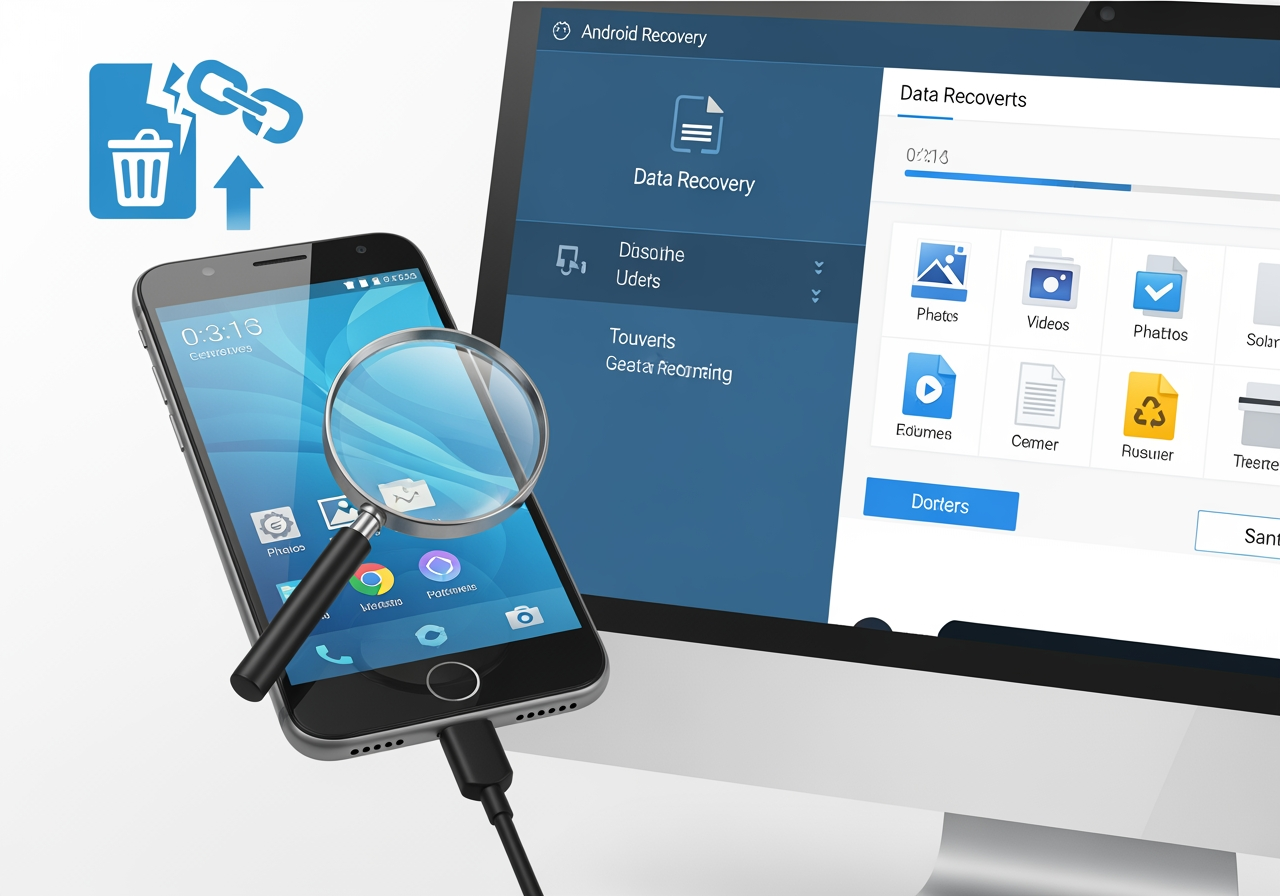
Android data recovery is the process of retrieving lost, deleted, or inaccessible files from Android smartphones and tablets. Whether you’ve accidentally deleted photos, experienced a system crash, or need to recover data from a broken device, specialized software can scan your device’s storage, identify recoverable files, and restore them to a safe location.
Quick Recovery Methods:
That sinking feeling when important files vanish from your Android device is something many of us have experienced. According to research, the most common causes include accidental deletion, software crashes, system updates gone wrong, rooting errors, and physical damage. The good news? When you delete a file on Android, it’s not immediately erased—the space is simply marked as available for new data, making recovery possible until that space gets overwritten.
The key to successful Android data recovery lies in acting quickly. The longer you continue using your device after data loss, the higher the chance that new data will overwrite the deleted files you’re trying to recover. Modern recovery software works through a four-stage process: scanning your device’s storage for traces of deleted files, identifying them by their unique signatures, reconstructing fragmented data pieces, and finally presenting these files for restoration.
I’m Jay Baruffa, President of Tech Dynamix and owner of Little Mountain Phone & Computer Repair in Painesville, Ohio, where I’ve spent years helping customers recover precious photos, critical documents, and irreplaceable data from Android devices. Whether you’re dealing with a simple accidental deletion or a complex hardware failure requiring Android data recovery expertise, understanding your options can make the difference between permanent loss and successful retrieval.
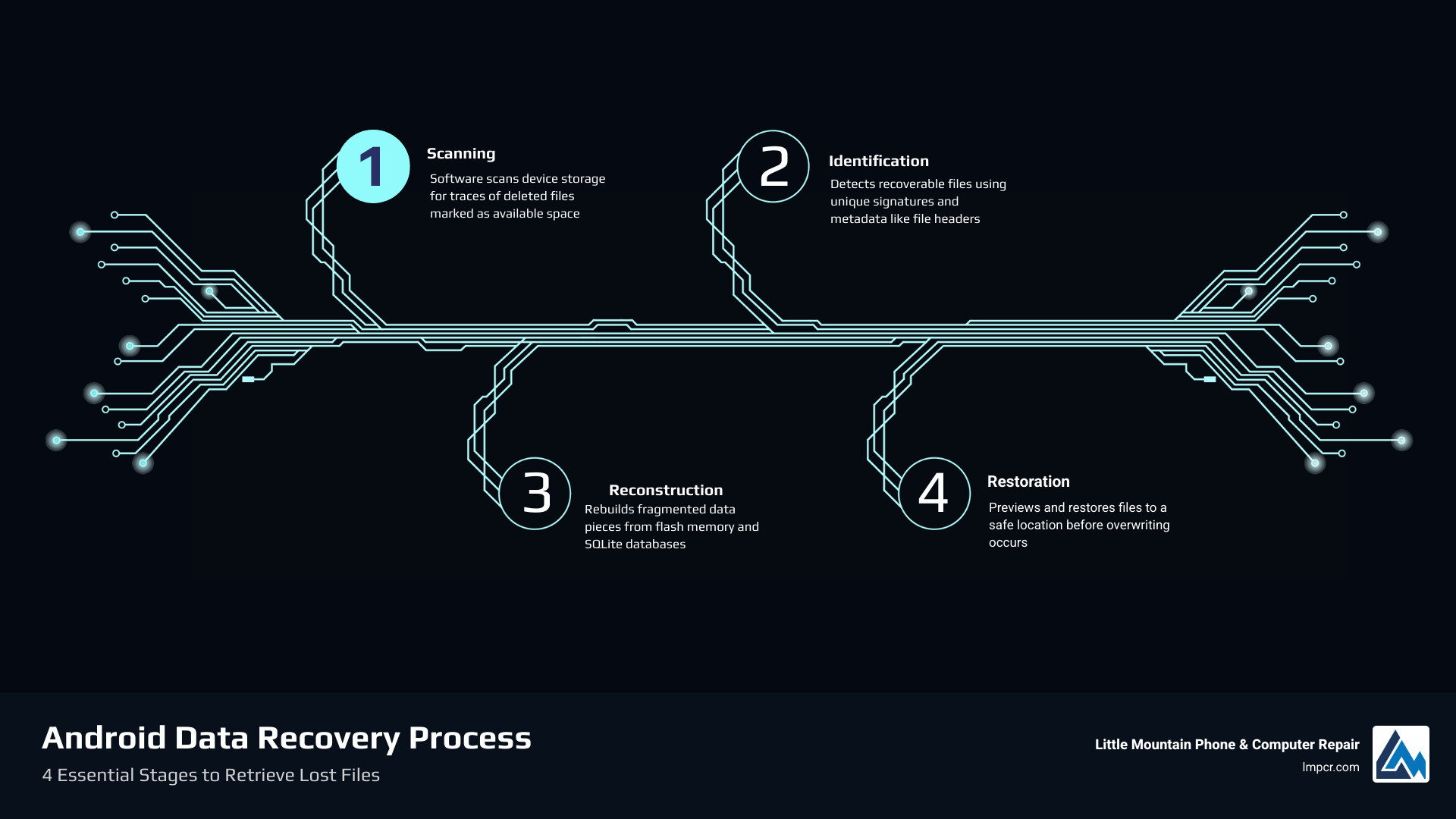
To understand how Android data recovery works, we have to look under the hood of how your phone handles files. Most users assume that clicking “Delete” triggers a digital shredder that destroys the file instantly. In reality, Android is much more efficient (and forgiving) than that.
The recovery process generally follows four sophisticated stages:
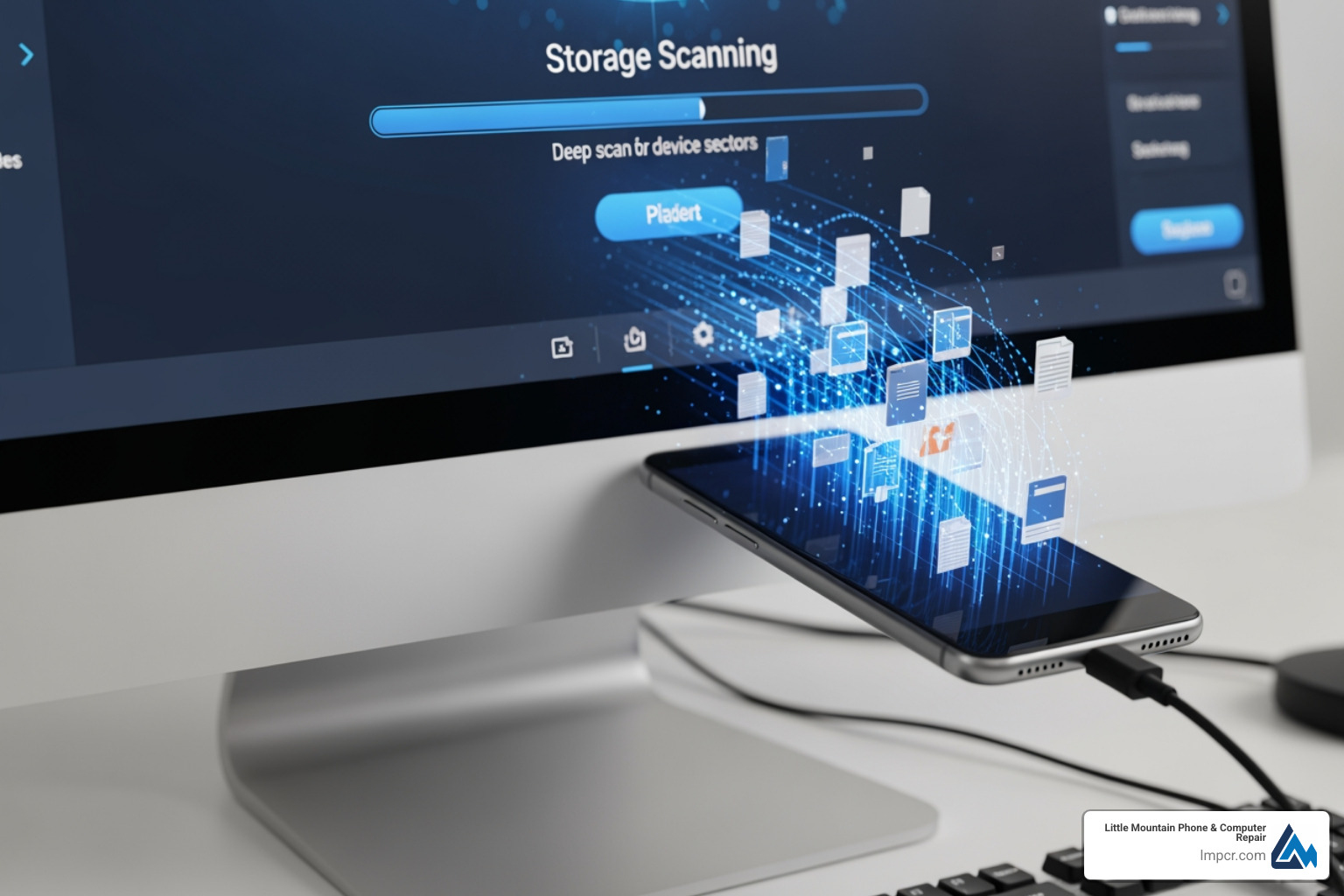
When you delete a file on an Android device, the operating system doesn’t actually erase the ones and zeros that make up that file. Instead, it simply deletes the “pointer” to that file in the file system index and marks that specific space as “available.”
Think of it like a library where the librarian removes the entry for a book from the card catalog but leaves the book on the shelf. The book is “gone” as far as the catalog is concerned, but it’s still physically there until someone else comes along and puts a new book in that exact spot. This is why we tell our customers in Painesville and Mentor to stop using their phones immediately—any new app download, photo taken, or even a system update could be the “new book” that overwrites your “lost book.”
Most modern Android devices use SQLite databases for storing text messages, contacts, and call logs. When a message is deleted, the database simply marks that row as “unused.” Specialist Android data recovery tools can read these SQLite files and extract the data from those hidden rows before the database performs a “vacuum” operation to permanently clean them.
If you’ve determined that your data isn’t in the trash bin or a cloud backup, it’s time to bring in the heavy hitters. There are several professional-grade software solutions designed for home use that have high success rates.
| Feature | Free Versions | Pro/Paid Versions |
|---|---|---|
| Scanning | Full deep scan available | Full deep scan available |
| Preview | Usually allows full preview | Full preview available |
| Recovery Limit | Restricted (e.g., 1 file or 500MB) | Unlimited recovery |
| Technical Support | Limited or none | 24/7 Priority support |
| Broken Phone Support | Rarely included | Advanced extraction modules |
| WhatsApp Recovery | Basic messages only | Full attachments & View Once |
When choosing a tool, don’t just look at the price tag. You want a solution that offers preview functionality. This allows you to see exactly what can be saved before you commit to a purchase. Another vital feature is selective recovery; you shouldn’t have to restore 10GB of junk just to get back three specific photos.
Look for software that can export data in multiple formats. For example, if you’re recovering contacts, you’ll want them in CSV or VCF formats so they can be easily imported back into your new phone. For a deeper dive into safeguarding your information, check out our guide on Data Recovery: How to Protect Your Valuable Files.
Depending on where your data was stored and the state of your phone, you might use different recovery “modes.”
Recovering from internal storage is more complex than an SD card because the software needs permission to access the “root” of the operating system. In the past, Android data recovery almost always required “rooting” the device—a process that gives you administrative privileges but can void your warranty.
Today, advanced tools like Dr.Fone can often perform a “limited” scan without root, finding deleted media and some app data. However, for a truly “Deep Scan” that searches every nook and cranny of the system for deleted SMS and contacts, rooting may still be necessary. We always recommend checking device compatibility lists first, as newer Android versions (like Android 14, 15, and 16) have tighter security protocols.
WhatsApp data is a category of its own. Because WhatsApp uses end-to-end encryption, the data is stored in specific .crypt database files on your phone. Modern recovery software can decrypt these files to find deleted chats, voice notes, and even “View Once” media.
Some premium tools now offer a “View Once” recovery feature. By running a silent process that monitors incoming data, they can intercept and save disappearing photos and videos before they vanish from your chat, giving you a permanent copy stored safely on your computer.
If you just realized your data is gone, STOP! Every second the phone is on, it is performing background tasks that could overwrite your files.
The best Android data recovery is the one you never have to do. We recommend a “3-2-1” backup strategy: 3 copies of your data, on 2 different media types, with 1 copy off-site (cloud).
Not always, but it helps. For simple photo and video recovery from the media gallery, most software can work without root. However, for deep system recovery (like deleted text messages or internal system logs), the software needs “Root” access to scan protected folders. Many modern tools try to find a middle ground by using “high-level” scanning that avoids rooting while still finding most files.
Yes, provided the “motherboard” of the phone is still functional. If the screen is black but the phone still vibrates or makes sounds, software can often “bypass” the screen. If you had “USB Debugging” enabled before the break, the process is much easier. If not, professional tools can sometimes use “Download Mode” or “Recovery Mode” to extract a physical image of the storage.
Most “free” tools are actually “free to scan.” They will show you a list of everything they could recover, but they require a license to actually save the files to your computer. There are some open-source tools like PhotoRec, but they are very technical and lack a user-friendly interface. For most users, the small investment in a pro tool is worth the saved time and higher success rate.
Losing data is stressful, but in the vast majority of cases, it isn’t permanent. Between built-in Google backups and powerful third-party software like Dr.Fone and EaseUS, the tools available for Android data recovery have never been better.
At Little Mountain Phone & Computer Repair, we’ve seen it all—from phones dropped in Lake Erie to tablets that were accidentally factory reset. With over 20 years of experience and a quick 30-minute average repair time for hardware issues, we’re here to help our neighbors in Painesville, Mentor, Willoughby, and throughout Lake County. If the software solutions feel overwhelming or your device is physically damaged, don’t guess—bring it to the pros for a diagnostic.
Ready to get your digital life back on track? Visit our Professional Device Repair Services page to see how we can help you today!

Need Help?
© Big Hill Technologies, LLC. All Rights Reserved

