-

-
Location:
1922 Mentor Ave, Painesville Twp.
Location:
1922 Mentor Ave, Painesville Twp.
Quick computer fix solutions can save you time, money, and frustration when your device stops working properly. Whether your computer won’t turn on, runs painfully slow, or displays error messages, most issues fall into a few common categories that can be resolved quickly with the right approach.
Common Quick Fixes for Immediate Relief:
| Problem | Quick Solution | Time Required |
|---|---|---|
| Computer won’t start | Check power cord connections, test outlet, try forced restart | 5-10 minutes |
| Slow performance | Close background programs, restart device, free up storage space | 10-15 minutes |
| Blue Screen of Death | Update drivers, run system updates, check for malware | 20-30 minutes |
| No internet connection | Restart modem/router, check WiFi signal, test with Ethernet cable | 5-10 minutes |
| Frozen screen | Perform forced restart (hold power button 10+ seconds) | 2-5 minutes |
Your computer is essential for work, school, managing your household, and staying connected. When it malfunctions, every minute counts. According to industry data, over 60% of computer problems are software-related, which means many issues can be resolved without expensive hardware replacements. The average computer repair costs between $60 and $150 for simple problems, but knowing when you need professional help versus a DIY fix can save you unnecessary expenses.
When to Try DIY vs. Seek Professional Help:
The key is understanding what constitutes a true emergency versus a problem you can troubleshoot yourself. Simple checks like verifying power connections, restarting your device, or updating software can resolve many common issues. However, certain symptoms—like strange mechanical noises, liquid damage, or repeated system crashes—require immediate professional attention to prevent permanent data loss or further hardware damage.
As Jay Baruffa, President of Tech Dynamix and owner of Little Mountain Phone & Computer Repair in Painesville, Ohio, I’ve spent over two decades helping customers diagnose and resolve computer issues, from simple Quick computer fix solutions to complex hardware failures. My team and I are committed to providing honest, efficient repairs that extend the life of your devices and get you back online as quickly as possible.
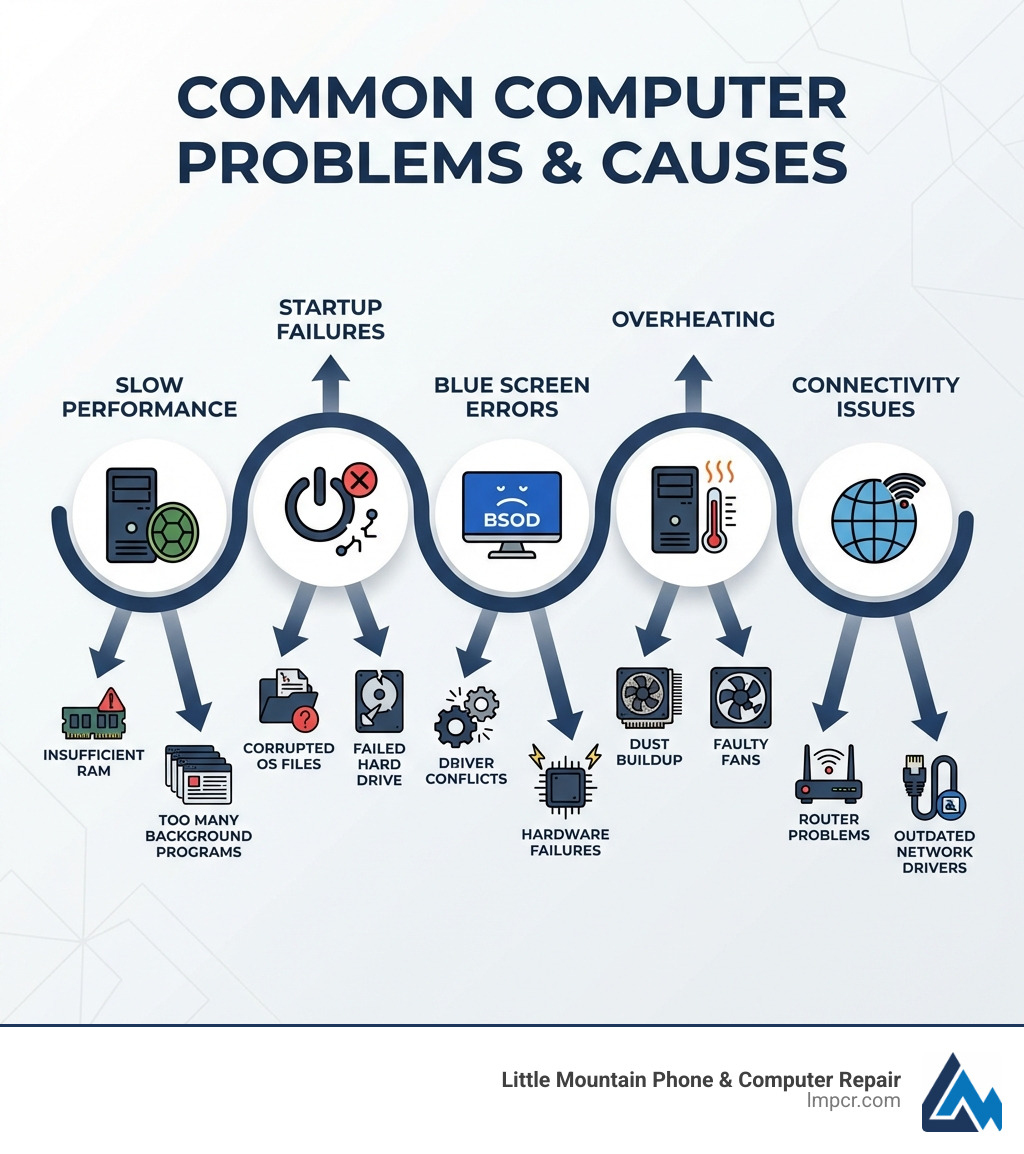
When your computer starts acting up, it can feel like a personal attack. But often, the culprits are common issues that we’ve seen countless times in our Painesville, Ohio, shop. Understanding these problems is the first step toward a Quick computer fix. We’re talking about everything from the dreaded Blue Screen of Death to systems that freeze or reboot without warning. Malware, too, plays a significant role in disrupting your digital peace.
The Blue Screen of Death (BSOD) is arguably one of the most alarming sights for any computer user. It signals a critical system error, forcing your computer to shut down to prevent further damage. Often, this can be caused by viruses, outdated hardware drivers, insufficient storage space for crucial updates, or even faulty hardware. Similarly, a computer that automatically reboots can be a symptom of faulty drivers, malware, broken hardware, or corrupted registry files. When your computer freezes, it might be due to malware overloading your processor or an issue during startup.
To help you distinguish between what might be a software hiccup and a more serious hardware problem, here’s a quick comparison:
| Symptom Category | Software-Related Symptoms | Hardware-Related Symptoms |
|---|---|---|
| Performance | Slowdowns, freezing, application crashes, pop-ups, unexpected shutdowns (often not critical hardware failure) | No power, intermittent power, system won’t boot, loud grinding/clicking noises, no display |
| Errors | Blue Screen of Death (often driver/OS related), error messages during program use, malware alerts | Physical damage (cracked screen, broken ports), overheating despite fan activity, unresponsive peripherals |
| Sounds | None specific to software, but system might sound busy if CPU is maxed out by software | Loud fan noise (even when idle), grinding/clicking from hard drive, beeping codes on startup |
| Connectivity | Software firewall blocks, driver conflicts for Wi-Fi/Ethernet | Faulty Wi-Fi card, damaged Ethernet port, loose cable connections |
A slow computer is like driving with the emergency brake on – frustrating and inefficient. Many factors contribute to a sluggish PC, but a Quick computer fix often involves addressing software-related issues.
One of the biggest culprits is too many background programs and resource-heavy apps running simultaneously. Each program consumes a portion of your computer’s Central Processing Unit (CPU) and Random Access Memory (RAM). If you have numerous applications, especially those that start automatically with Windows, your system can quickly become overwhelmed. We recommend checking your Task Manager (Ctrl+Shift+Esc on Windows) and disabling unnecessary programs from the “Startup” tab. This can significantly reduce the load on your system.
Malware is another notorious performance killer. Malicious software can run hidden processes, consume system resources, and even steal data, all while slowing your PC to a crawl. Regular malware scans using reputable antivirus software are crucial. If your computer is noticeably slower, a deep scan should be one of your first troubleshooting steps.
Finally, don’t underestimate the impact of insufficient storage space. As we add more files, apps, and programs to our hard drives, they can become fragmented and full, leading to slower read/write speeds. It’s like trying to steer a cluttered room – everything takes longer. Regularly checking and freeing up storage space, uninstalling unused applications, and running disk cleanup utilities can dramatically improve performance. For more tips on keeping your computer running smoothly, check out our Blog.
When your computer throws a Blue Screen of Death (BSOD) or decides to reboot itself without your permission, it’s a clear cry for help. While these can indicate serious underlying issues, a Quick computer fix is sometimes possible by addressing common causes.
Outdated drivers are a frequent culprit. Device drivers are software that allows your operating system to communicate with your hardware. If these drivers are old, corrupted, or incompatible, they can cause system instability, leading to BSODs or unexpected reboots. We always advise our clients in Mentor and Painesville to keep their hardware drivers up to date. Most hardware manufacturers provide driver updates on their websites, or you can use Windows Update.
Corrupted registry files can also cause system instability. The Windows Registry is a hierarchical database that stores low-level settings for the Microsoft Windows operating system and for applications that opt to use the registry. If these files become corrupted, your system can become erratic, leading to automatic reboots. While there are specialized programs that claim to clean registry files, caution is advised, and professional help is often best for this delicate area.
Regular system updates and security patches are paramount. These updates not only introduce new features but, more importantly, fix bugs, address vulnerabilities, and improve compatibility between hardware and software. Failing to install updates can leave your system exposed to malware that causes BSODs or introduce conflicts that lead to reboots. We cannot stress enough the importance of enabling automatic updates for your operating system and essential software.
Lastly, hardware conflicts can trigger these critical errors. When different hardware components (e.g., a new graphics card, an old USB device) clash, it can lead to system crashes. Running diagnostic tests can help identify if a specific piece of hardware is causing the problem.
Before you panic and bring your computer to us at Little Mountain Phone & Computer Repair, there are several Quick computer fix steps you can try yourself. Many seemingly complex issues can be resolved with a few simple checks. We empower our customers in Lake County, Ohio, to perform basic troubleshooting, saving them time and money.
First things first: always check the obvious. Are all your power cords securely plugged into the computer and the wall outlet? Is your surge protector switched on and functional? We’ve seen countless cases where a simple loose connection was the root of a “dead” computer. If it’s a laptop, is it charging? Try switching power adapters before assuming the device itself is down.
For internet issues, start by testing your internet speed. Websites like Speedtest.net can quickly tell you if the problem is with your connection or your computer. Then, try restarting your modem and router. This can often resolve temporary network glitches. If you suspect your internet service provider is the source of slow speeds, testing with a mobile hotspot can help confirm.
We also have a comprehensive FAQ section on our website that covers many common questions and provides initial troubleshooting advice.
When your computer won’t turn on or presents a frozen screen, it’s certainly frustrating. However, a Quick computer fix might be within reach.
If your computer won’t turn on, first ensure it’s getting power. Check all power connections, the outlet, and the power supply. If you’re using a laptop and it’s been in a very cold environment (like a car overnight in an Ohio winter), it might just need time to “thaw” before starting. If the computer seems to be running (fans spinning, lights on) but nothing appears on the screen, inspect the display. Ensure the monitor is on and connected, and try a different monitor or cable if possible.
For a frozen screen, a forced restart is often the solution. Simply hold down the power button for 10-15 seconds until the computer completely shuts off, then press it again to restart. While this isn’t ideal for data integrity, it’s necessary when the system is completely unresponsive.
Slow startup times are typically caused by too many programs launching when your computer boots up. This is where bloatware and unnecessary applications in your startup list come into play. Open your Task Manager (Ctrl+Shift+Esc), go to the “Startup” tab, and disable any programs you don’t need to run immediately upon login. This can significantly reduce your boot time and provide a noticeable Quick computer fix.
In our interconnected world, losing internet access or having a printer refuse to cooperate can bring productivity to a halt. Luckily, these often have Quick computer fix solutions.
For internet woes, the classic modem restart and router restart is a go-to. Unplug both devices from power, wait about 30 seconds, then plug the modem back in first, followed by the router. This often clears up temporary network congestion or IP address conflicts. If your Wi-Fi is spotty, try moving closer to your router or connecting directly with an Ethernet cable to see if the issue is with your WiFi signal strength. Closing background programs or downloads can also improve internet speed, as they might be hogging bandwidth.
Printer problems are notoriously annoying. A Quick computer fix for many printer issues is to first check the basics: is it plugged in? Is there paper? Is there ink/toner? Beyond that, try removing and then re-adding the printer from your computer’s settings. If it’s a wireless printer, a driver refresh or simply toggling your computer’s wireless capabilities off and on can often re-establish the connection. In some cases, updating the printer’s drivers from the manufacturer’s website can resolve compatibility issues.
While many issues can be resolved with a Quick computer fix at home, some problems signal deeper hardware failures that require professional attention. In our shop serving Painesville, Concord Township, and surrounding areas, we specialize in diagnosing and repairing these more complex hardware issues. Ignoring them can lead to permanent data loss or costly replacements.
One clear sign of trouble is a noisy hard drive. If you hear grinding, clicking, or loud whirring sounds coming from your computer, especially from a traditional Hard Disk Drive (HDD), it’s a strong indication that the drive is failing. Hard drives store all your data, and a failing drive means imminent data loss. This is not a situation for a DIY Quick computer fix; immediate professional intervention is needed to back up data and replace the drive.
Similarly, a faulty fan can lead to significant problems. Your computer’s fans are crucial for cooling internal components. If your computer is unusually hot to the touch, constantly throttling performance, or you notice a fan is not spinning or making excessive noise, it needs attention. Overheating can cause irreversible damage to your CPU, GPU, and other sensitive components. We can run diagnostic tests to pinpoint the issue and replace faulty fans, ensuring proper airflow and preventing heat-related damage. For detailed information on our hardware repair services, please visit our PC Repair page.
When a component fails, a Quick computer fix often means a professional hardware replacement. We offer a range of services to get your device back in top shape.
Screen replacement is a common request, whether it’s for a cracked laptop display or a malfunctioning monitor. We can replace damaged screens, restoring clarity and functionality. Battery capacity naturally deteriorates over time, especially in older laptops. If your laptop’s battery no longer holds a charge for long, we can replace it, giving your device new life.
Charging ports are also prone to damage from repeated use or accidental tugs. If you have to wiggle your charge cord just to get your device to charge, it’s time for a repair. We can fix or replace damaged charging ports, ensuring a reliable power connection.
Perhaps one of the most critical services we offer is data recovery. If your hard drive fails and you haven’t backed up your precious files, don’t panic. Many computer repair shops, including ours, offer data recovery services. We can assess the drive and use specialized tools to recover lost documents, photos, and other irreplaceable files. For more complex cases, services like Stellar or GetDataBack can be used, but our in-house data recovery solutions often suffice for many clients in the Mentor-on-the-Lake area.
For older, slower systems, SSD upgrades can provide a significant performance boost. Replacing a traditional HDD with a Solid State Drive (SSD) dramatically reduces boot times and application loading speeds, making your computer feel brand new. This is one of the most impactful Quick computer fix upgrades you can make for an aging machine.
Sometimes, a Quick computer fix doesn’t even require bringing your device into our shop. Remote support tools allow us to connect to your computer from our location, diagnosing and resolving software issues without you having to leave your home or office in Kirtland or Willoughby.
Microsoft’s built-in Quick Assist tool is an excellent example of this. It allows a trusted helper to view your screen or take full control of your computer over a remote connection. This is incredibly useful for troubleshooting software glitches, configuring settings, or guiding you through complex steps. You can learn more about how to use it at Solve PC problems remotely using Quick Assist.
However, it’s crucial to be aware of tech support scams. Only allow a helper to connect to your device if you initiated the interaction by contacting a trusted source directly. Scammers often use scare tactics to trick you into granting them access. When used with people you trust, Quick Assist provides a secure way for us to offer a Quick computer fix remotely, by taking advantage of screen sharing and remote control capabilities. We can guide you through steps, install updates, or remove malware, all from a distance.
Preventative care is key to avoiding the need for a Quick computer fix in the first place. Just like your car, your computer benefits greatly from regular maintenance. By adopting a few best practices, you can significantly extend the lifespan of your devices and ensure they run smoothly for years to come.
One of the simplest yet most effective maintenance tasks is dust removal. Dust accumulates inside your computer, clogging fans and heatsinks, which leads to poor temperature control and overheating. Over time, excessive heat can degrade components, leading to early failure. Regularly cleaning the dust from your computer’s vents and internal components (with compressed air) can prevent many heat-related problems.
Another often overlooked aspect is static electricity. A charge of static electricity can be thousands of volts, and a static discharge can damage sensitive internal components. When handling internal components, always take precautions like using an anti-static wrist strap. Similarly, surge suppression is vital. Sharp electric power fluctuations can damage your computer’s power supply and other components. Always plug your computer into a quality surge protector to shield it from power spikes.
Finally, staying on top of software updates is non-negotiable. These updates aren’t just about new features; they include critical bug fixes, performance improvements, and, most importantly, security patches. These patches protect your system from new vulnerabilities and malware, preventing many software-related issues that would otherwise require a Quick computer fix.
Using an unsupported OS or ignoring software issues and hardware malfunctions can have severe consequences, far beyond the need for a Quick computer fix.
When an operating system reaches its end-of-life, like Windows 10 is slated to do in October 2025, it no longer receives security updates. This leaves your system vulnerable to new threats, making it an easy target for viruses, malware, and ransomware. These security vulnerabilities can lead to data theft, system corruption, and significant privacy risks. We strongly advise clients in Eastlake and Willowick to upgrade their operating systems to supported versions to maintain security.
Ignoring seemingly minor software issues or hardware malfunctions can escalate quickly. A small software glitch can turn into a corrupted operating system, requiring a complete reinstallation and potential data loss. A noisy hard drive, if ignored, will inevitably fail, leading to significant data recovery costs or permanent loss of irreplaceable files. Similarly, a constantly overheating computer due to a faulty fan or dust can lead to irreversible hardware degradation for the CPU and motherboard.
The potential consequences of neglecting these issues can range from diminished performance and frustrating user experience to complete system failure and substantial financial cost for repairs or replacement. It is always best to address computer problems promptly, whether through a DIY Quick computer fix or professional repair services.
We often hear similar questions from our customers in Geneva and Lake County, Ohio, when they’re looking for a Quick computer fix or more extensive repairs. Here are some of the most common ones.
Choosing the right repair service is crucial. When you’re entrusting your valuable device to someone, you want peace of mind. Here’s what we recommend looking for:
The cost of computer repair can vary widely depending on the complexity of the issue and whether it’s a hardware or software problem.
Over 60% of computer problems are software-related, which are often less expensive to fix than hardware issues. Getting a free diagnostic, which we offer, is the best way to get an accurate estimate.
This is a tricky question, and the answer largely depends on your device’s manufacturer and the type of repair.
For most users, we recommend caution with DIY repairs, especially if the device is still under warranty or if you’re not confident in your technical skills. The potential for greater damage or voiding your warranty often outweighs the perceived savings of a DIY Quick computer fix.
When your smart devices stumble, a Quick computer fix can be the lifeline you need. We’ve explored everything from common software glitches like slow performance and the dreaded Blue Screen of Death to critical hardware failures such as noisy hard drives and faulty fans. We’ve also highlighted the power of DIY troubleshooting for simple issues and the undeniable importance of professional expertise for more complex repairs and data recovery.
At Little Mountain Phone & Computer Repair, we understand the vital role your computer plays in your daily life in Painesville, Ohio, and the surrounding communities. With over 20 years of experience in the device repair industry, we pride ourselves on providing comprehensive solutions with a 30-minute average repair time for many issues. As a locally owned and operated business, our team of expert technicians is dedicated to delivering transparent pricing, quality repairs, and exceptional customer service.
Don’t let tech troubles disrupt your life. Whether you need a Quick computer fix or a more in-depth solution, we’re here to help. Reach out to us for reliable, efficient service that gets your devices back in action.

Need Help?
© Big Hill Technologies, LLC. All Rights Reserved


